Timesheets
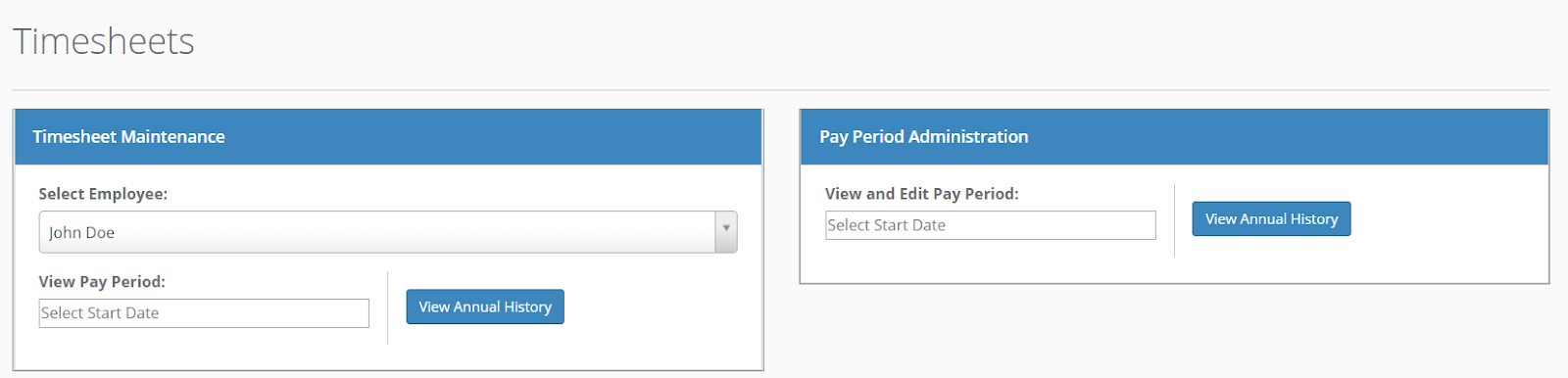
To maintain an individual staff member's timesheets, visit the left hand portion of this screen. Pay period administration is available on the right, where you can view and edit all of the hours in a given pay period or view the annual timesheet history for all staff members.
Timesheet Maintenance
If the "Submit Timesheets?" box is checked on the Staff Maintenance screen the staff member's name will appear in the dropdown menu. Click "View Annual History" to view the employee's annual timesheet history. To view a specific pay period, select the start date of the pay period. Pay period start dates will be clickable and highlighted in green. To change your pay period range, visit your Timesheet Settings option under the Admin panel.
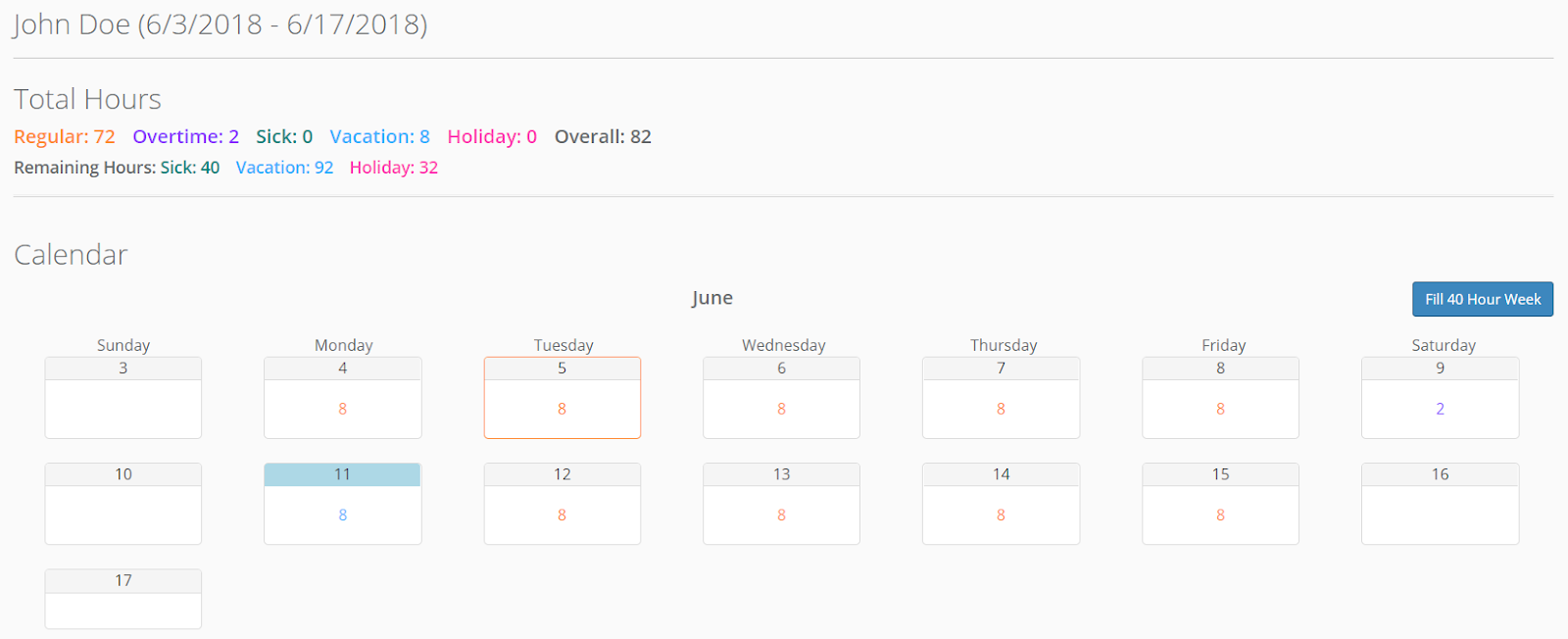
To quickly fill a 40-hour work week with 8 hours Monday-Friday, click the "Fill 40 Hour Week" button.
To edit the hours for a particular day, click on the box for the appropriate date. Regular, overtime, sick, vacation, and holiday hours are color-coded. If you have limited the staff member's annual sick, vacation, and/or holiday hours, the remaining hours will be shown in the Total Hours section. To limit hours for staff members, visit the Staff Maintenance option under your Admin panel. See the Staff Maintenance section of this help manual for more information.
Pay Period Administration
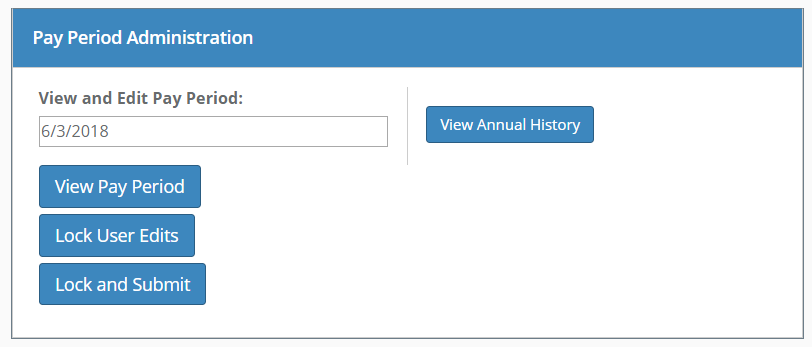
To view and edit a particular pay period, select a pay period. You can view the pay period as well as lock the pay period against any future user edits. Click "Lock and Submit" to lock the pay period against future edits and submit the pay period. This will send a .pdf file to the emails designated in your Timesheet Settings under the Admin panel. See the Timesheet Settings section of this manual for more information.
Click View Annual History to view the annual pay period history for each staff member.
Comments
0 comments
Please sign in to leave a comment.