When you go to Financials / At Need Invoices and Statements Halcyon will bring up all open (unpaid) At Need accounts. It includes buyer's information and co-buyer's information (if there was a co-buyer) for each case. Effective Dec 1, 2019 each outstanding contract and add on is grouped by buyer. You can change that grouping by going to Admin / Invoices & Statements and then each will be listed individually. Also effective Dec 1, 2019 all Open Accounts are shown even if a buyer is missing.
Important to note: if you mistakenly setup a new buyer for an add on contract that is the same as the original contract buyer Halcyon will consider those two separate buyers even if they have the same name. If the add on buyer is the same as the original contract buyer then always "Select An Existing Contact as Buyer" and don not "Add New Buyer".
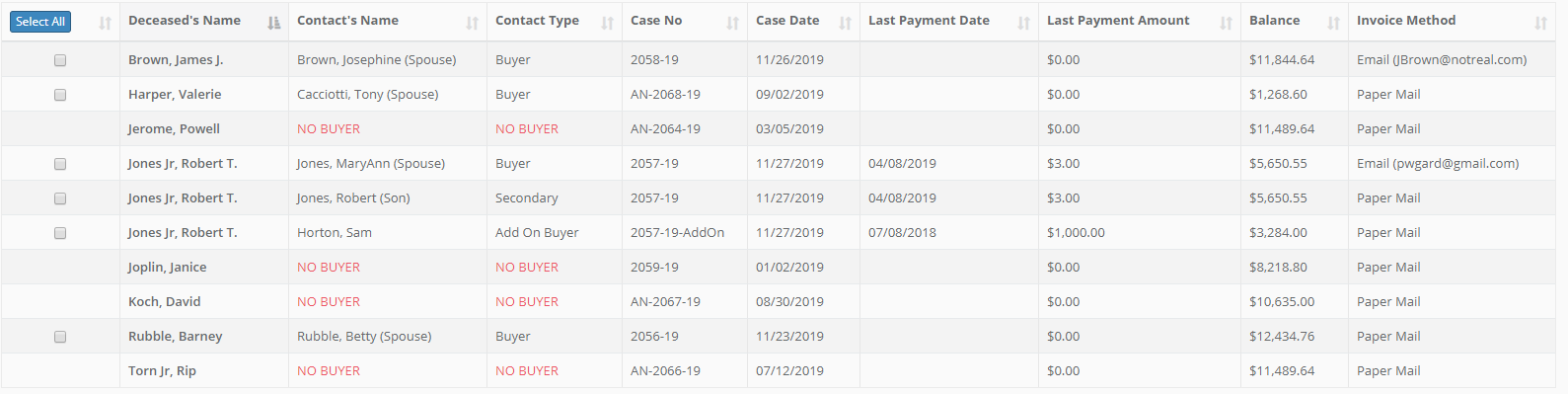
Invoices:
From here you can create invoices for one or more cases. The text included in the invoice is determined by your setup. See the article for Invoice and Statement Maintenance for more details about that setup. The invoice will show your location's information along with your logo or letterhead (if that is setup) and it will be formatted for a standard window envelope.
Emailing invoices:
The invoices created will be PDF files that are either generated to your screen (for you to print) or emailed to the recipient. You define how the invoice is generated in Cases / Contacts for each case. Edit entries for the designated Buyer (or Add'l Buyer) and select the Preferred Invoice Method. Note, if you don't change anything for the buyer the default is paper invoices.
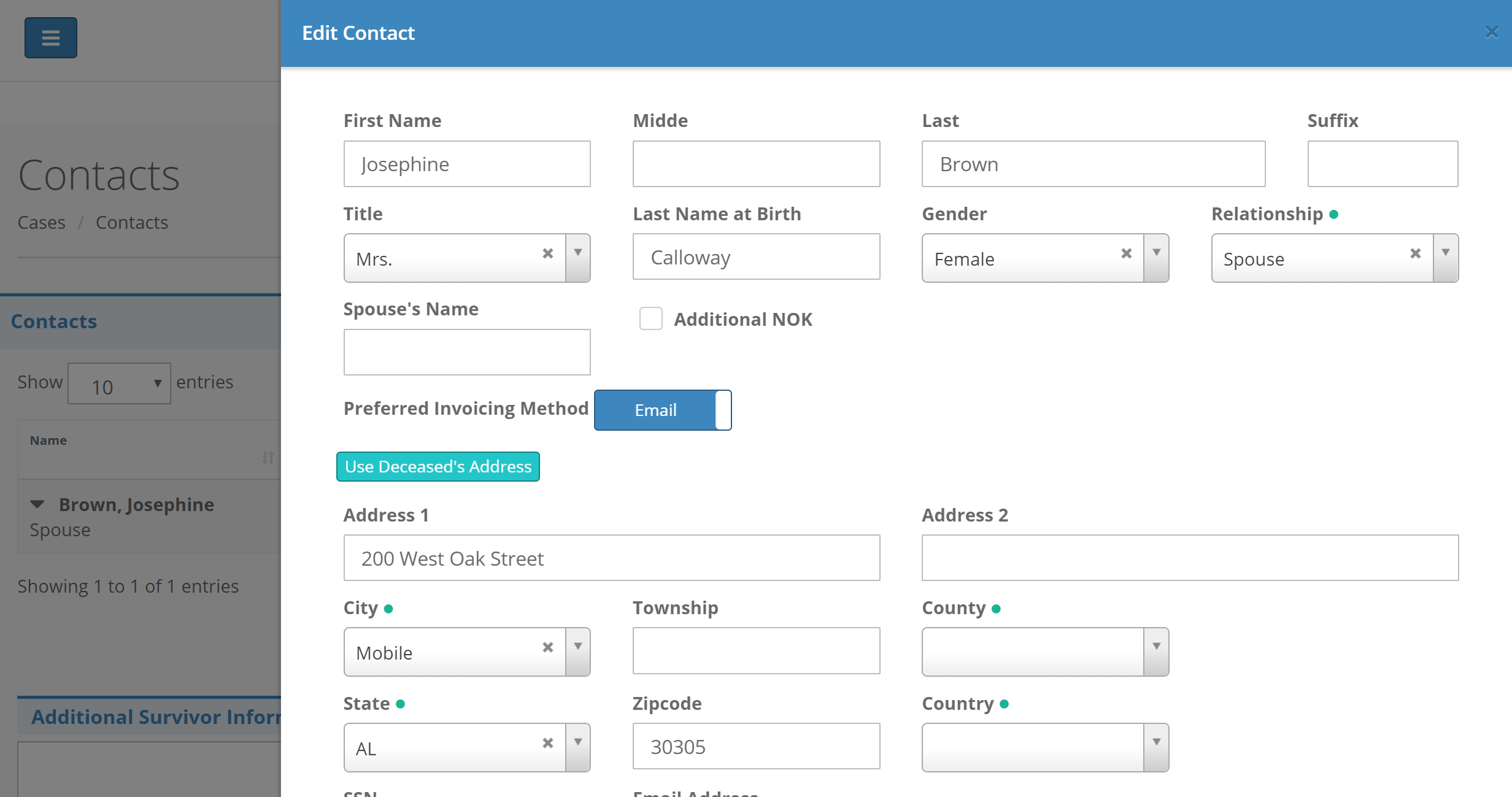
Your company's sending email address is setup in Admin / Company Maintenance. If you have more than one branch be sure to define the email address for each branch.
Create Address Mail Merge
If you are mailing your invoices or statements you can use the mail merge feature to create address labels and/or print directly onto your envelopes via Word or similar program. When you click the Create Mail Merge button a file will download to your computer with the names and addresses for your selected buyers. Check out the help section of Word or whichever program you use to create the labels or envelopes for additional assistance on how to make them.
Invoice and Statement Log:
A log is available on the Case/Accounts screen to tell you when invoices or statements were run. If the invoice was emailed Halcyon will show you if the email was received and when the recipient opened the email.

Statements:
Statements behave in a similar way but exclude the invoice language and break out details of what was purchased.
Comments
0 comments
Please sign in to leave a comment.