Change Tracking Removal Authorization

This setting controls whether crematory operators have the ability to remove a body from the tracking process at any point prior to entering the cremation/aquamation process. One potential need for this would be if you store embalming or burial clients in the same locations as your cremation clients. If you do not authorize this function then all removals from tracking must be performed by an Administrator level user at Admin > Tracking Maintenance > Tracking Override Settings.
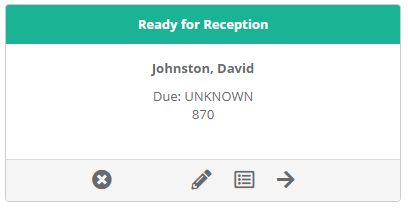
If the tracking removal is enabled, users with Admin access will see a circle with an "X" in the client panel.
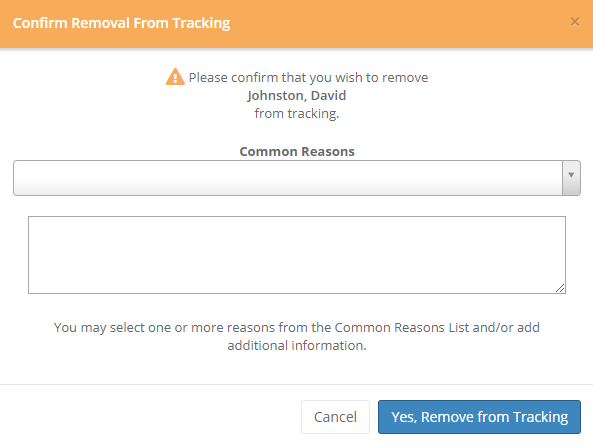
Clicking the "X" you will be required to enter a reason why this decedent is being removed from tracking.
Change Tracking Code
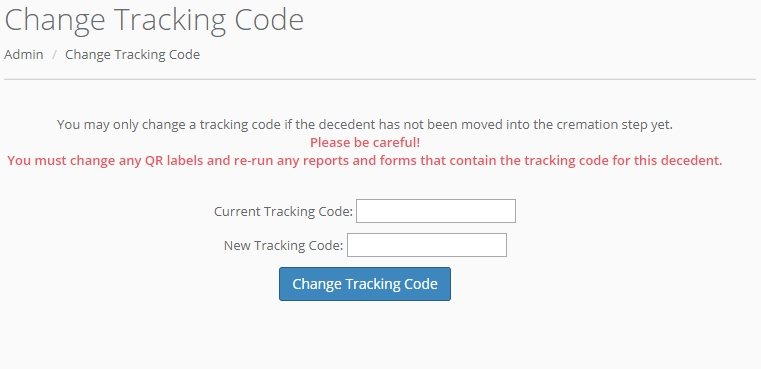
This screen will allow you to change a tracking code for a decedent. If you are using the QR code with cremation tracking you may only change the code if the decedent is not in or after the cremation step. If you are not using your QR codes for cremation tracking you may change it at any time.
Please use this feature with caution. You must remember to change any QR code labels and rerun any reports and or forms that contain the QR code for this decedent.
Enable/Disable QR Tracking Code Assignment (Non-crematory tracking only)
You will only see this option on your Admin menu if you are NOT using your QR codes for cremation body tracking. If enabled, you will have the option to assign a QR code to the decedent when you add the case. You may create and attach QR codes to paperwork, personal effects, -- use them in anyway you wish. If enabled you will see a blue "look up" icon at the top of every screen. After clicking the icon you will be presented with a screen to enter or scan in the QR code. A successful scan will take you to the Overview screen for that client.
Tracking Override Reasons
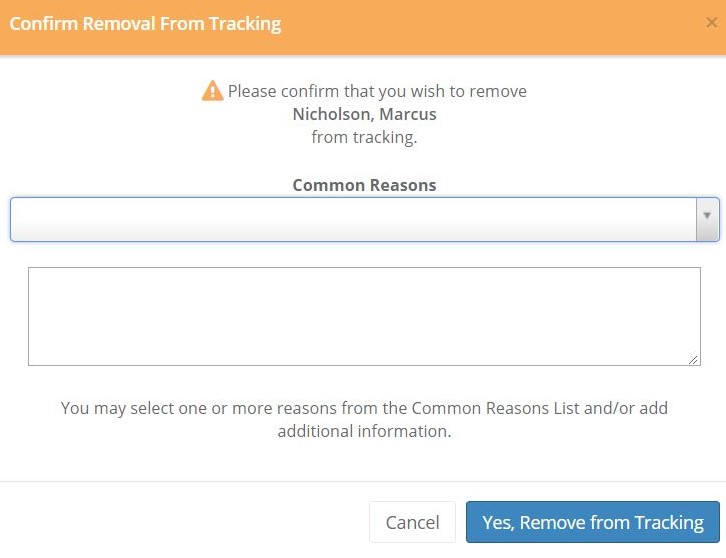
This screen allows you to maintain items in the "Common Reasons" dropdown that appears on the Confirm Removal from Tracking popup.
Override Tracking
You may override the normal cremation tracking flow via this option.
See our Help Article on Override Tracking for more information.
Comments
0 comments
Please sign in to leave a comment.