There are several places in Halcyon to get statements about purchases.
Cases / Account
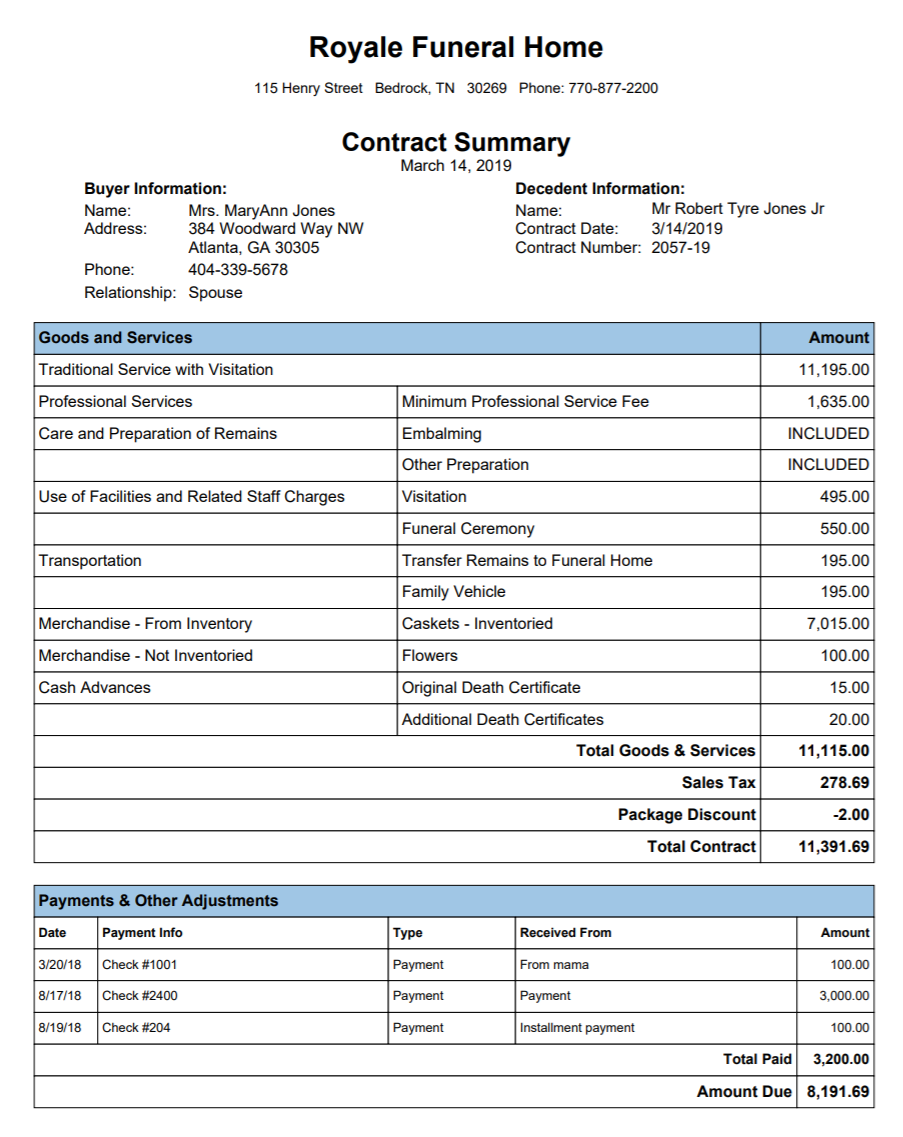
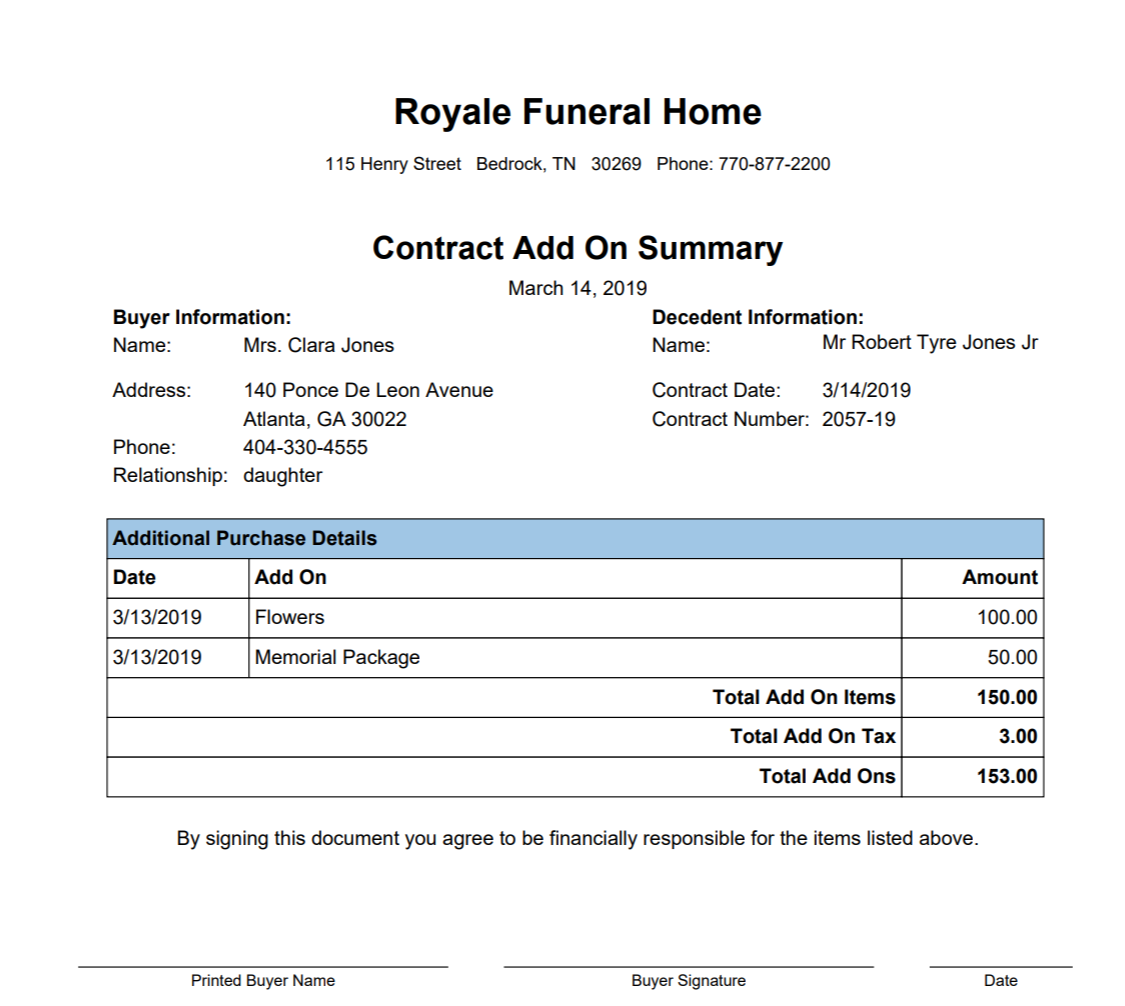
You can print summaries of what was purchased as part of the original contract or for each Add-on contract. Click the blue Case Summary and or Add On Summary buttons to create summary statements formatted in a grid-like output and include all payments to date.
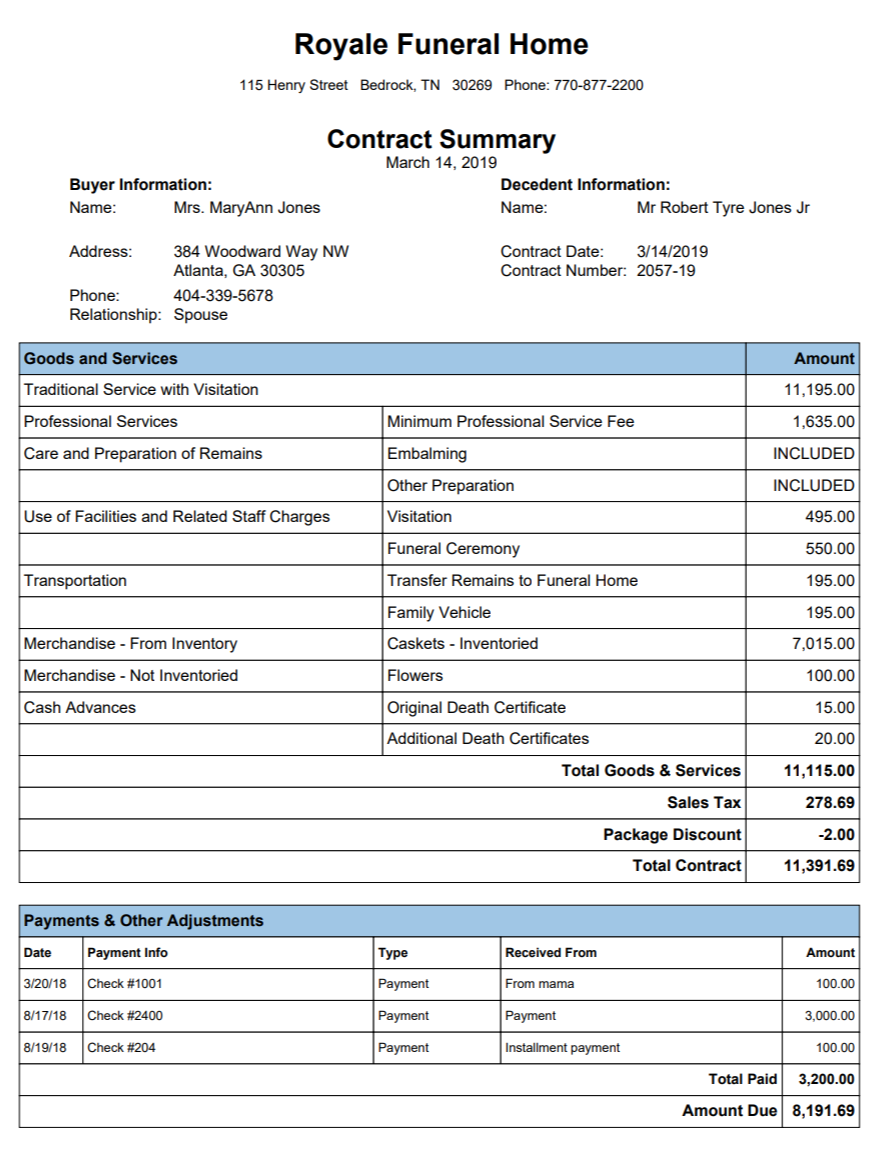
There are two different summary formats available. Click the Create Entire Summary button to create a summary report of what was purchased for all contracts (original and add-ons) for the case. The Purchases and Payments by Buyer breaks pages if there are different buyers.
Financials / At Need Invoices and Statements
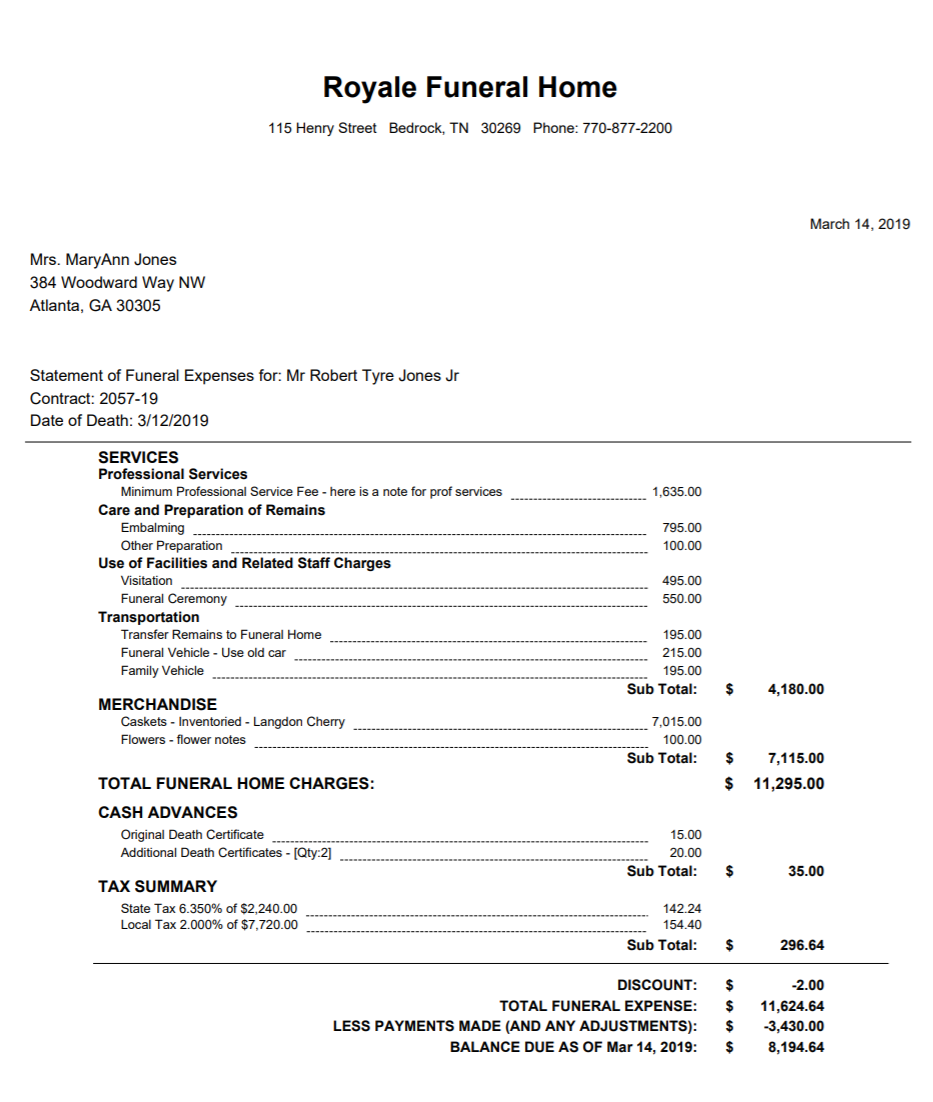
The At Need Invoices and Statements screen is primarily used for invoicing. Therefore it only allows invoices and statements to be run for cases with Open Accounts and they must have a buyer. Statements printed here are formatted for letters (window envelope) and are formatted in a ledger-like output.
Forms (Forms Menu, Client Summary, Arrangement Assistant)
Several forms are available from Setup/Forms Setup that you can make available on the forms menu or Client/Summary (or Arrangement Assistant if you have that).
Detailed Statement - this is the same ledger-like format that is available in the Financials/ At Need Invoices and Statements screen
Case Account Summary - this is the same grid-like format as available in the Case/Account screen for original contract.
Client AddOn Summary - this is the same grid-like format as available in the Case/Account screen for addons.
Case Full Account Summary - this is the same grid-like format as available in the Case/Account screen. It includes all purchases (original plus addons) for the same buyer. If the case has addons from a different buyer they are displayed on another page.
Case Account Summary with Purch Notes
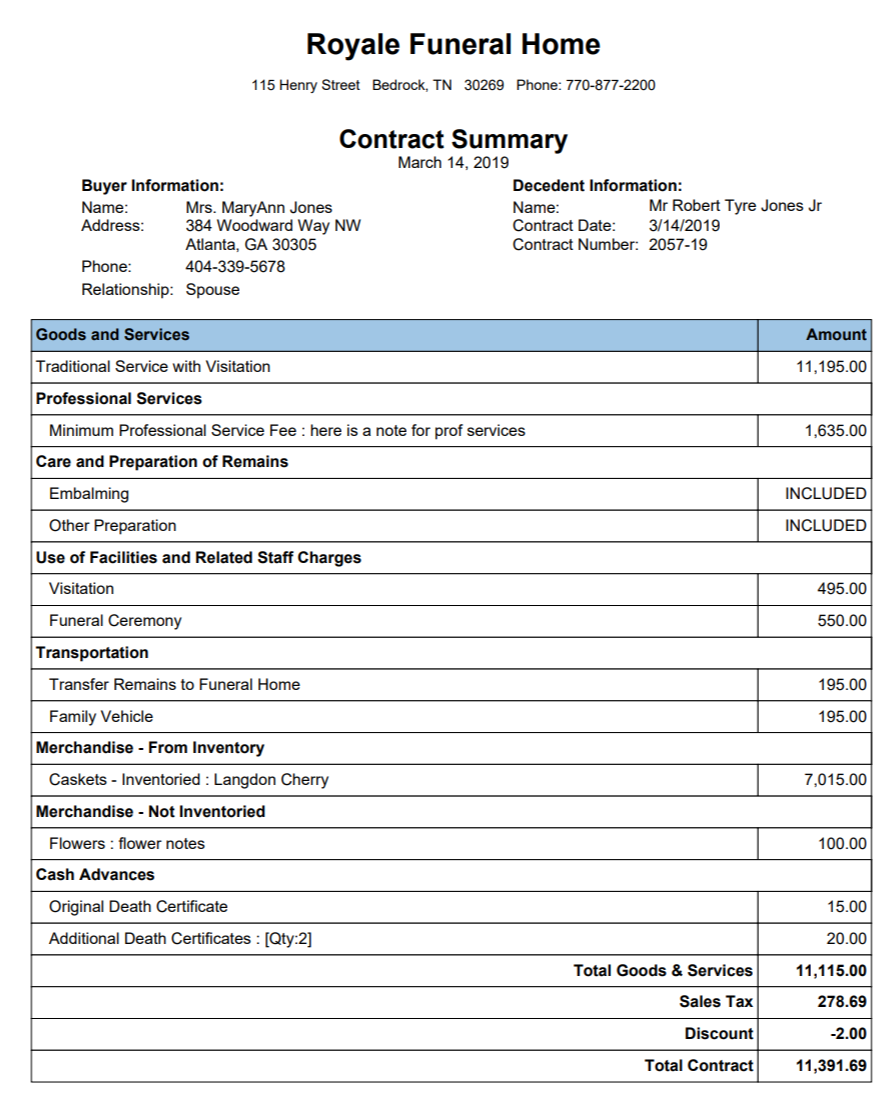
Case Services Summary - gives many of the services details. Excludes any contract information.
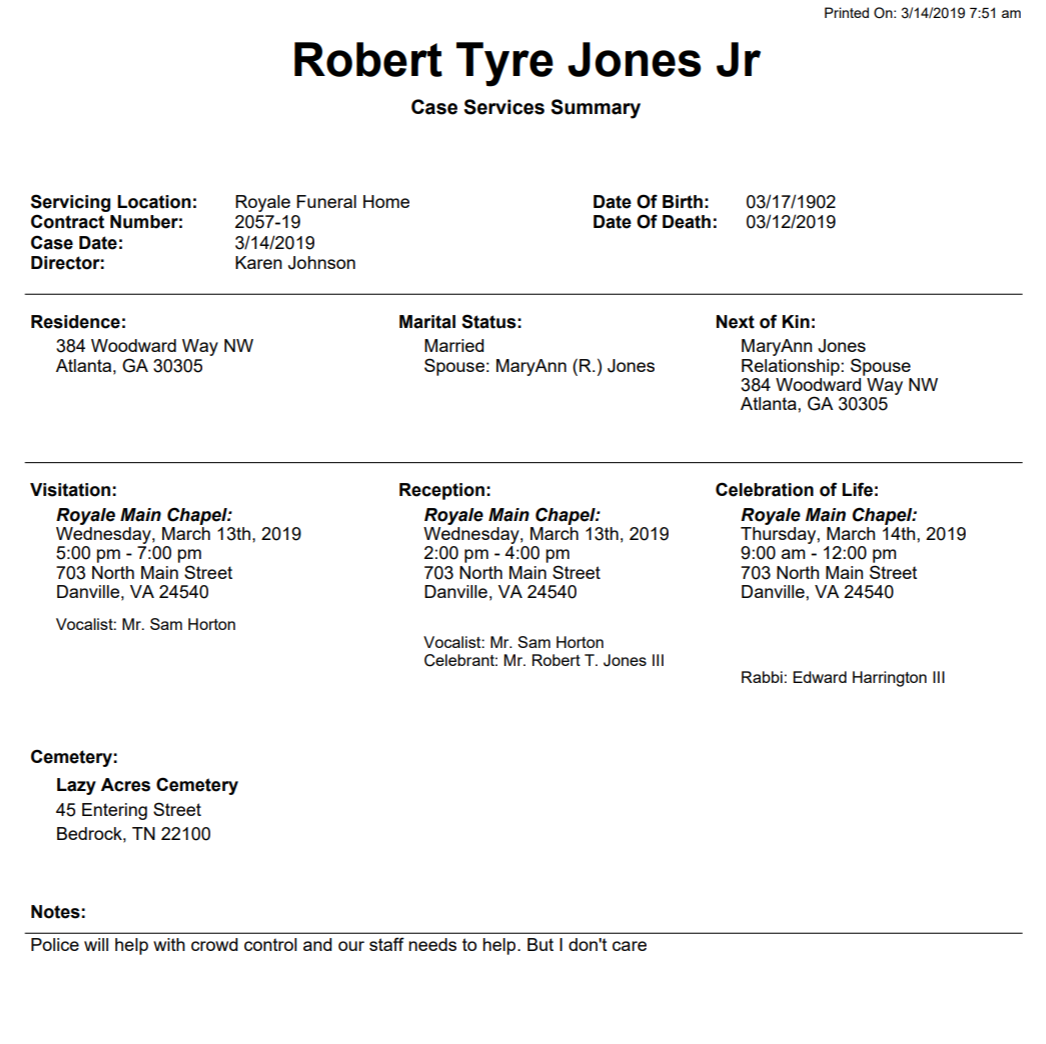
Case Services Summary with Photo
Account Summary - shows many details about decedent and services and also shows contract information.
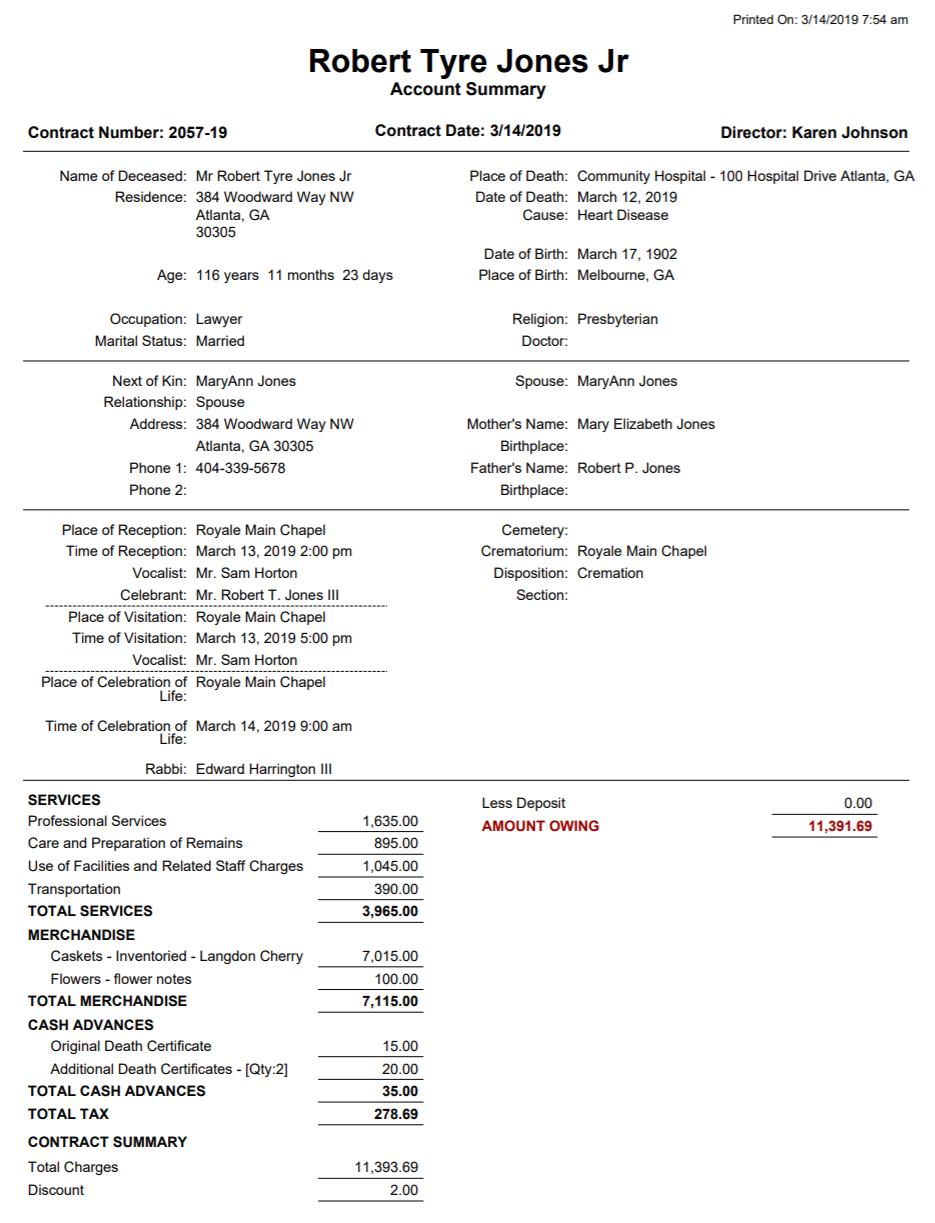
Comments
0 comments
Please sign in to leave a comment.