Halcyon transactions will not be sent to QuickBooks until you set up the integration. This setup will determine what QuickBooks accounts are hit for different transactions coming from Halcyon. You might say this is how Halcyon knows about your QuickBooks chart of accounts (aka General Ledger).
Before proceeding with this setup be sure you understand these topics:
QuickBooks Integration Details - see this article
Halcyon Contract Line Items - see this article
Halcyon staff has to enable QuickBooks integration for you. After that is done you will see available a green Connect to QuickBooks button.

When you select that button Halcyon will bring up a login screen for your QuickBooks account. Halcyon will not store your QuickBooks credentials. Instead the two cloud-based systems will use standard technology to pass tokens between the two systems. Halcyon will then store that token so you should never have to do this connection again (with exceptions).
Expense Integration Setup
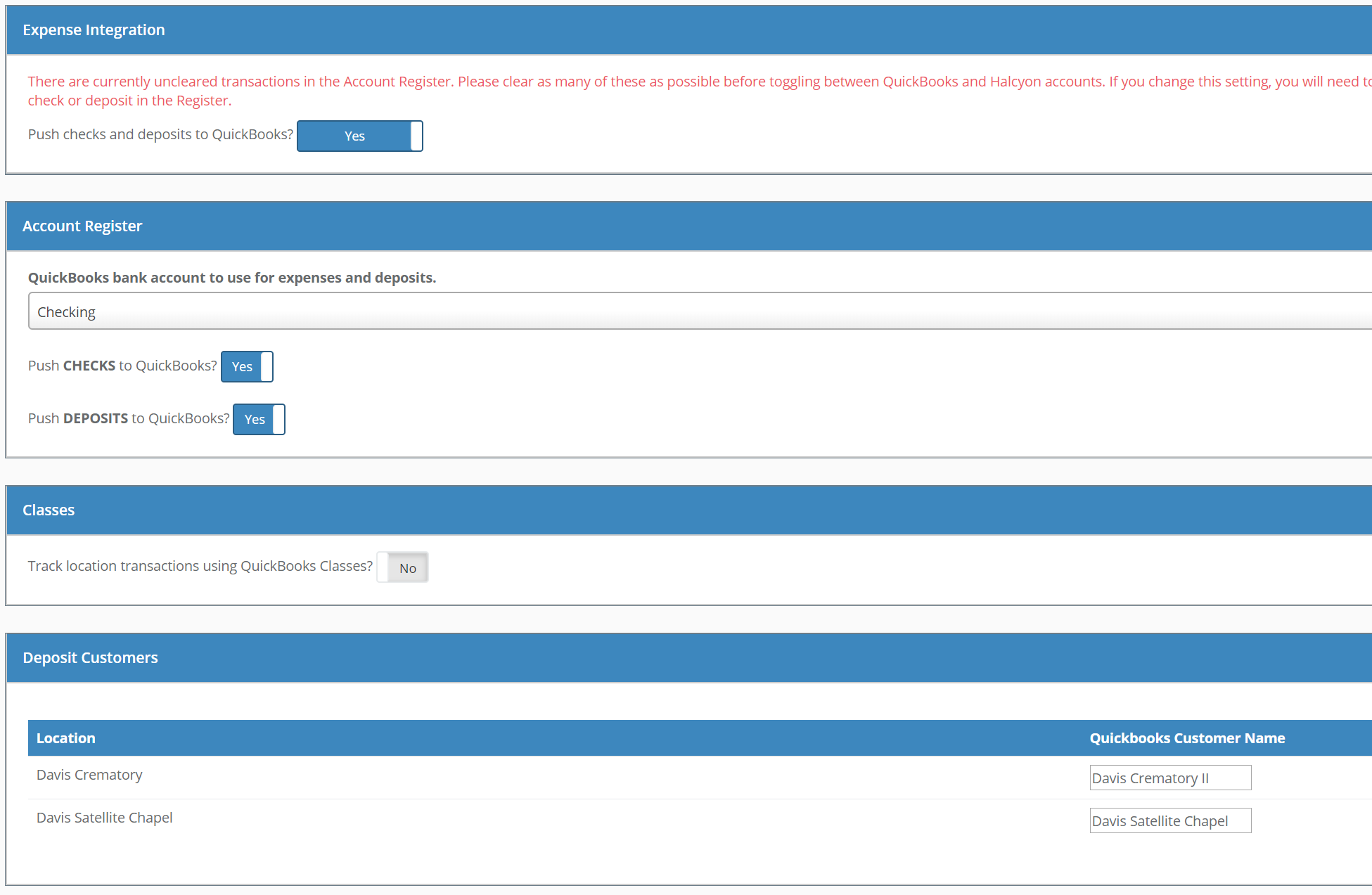
Determine if you are going to enter and integrate expenses (Halcyon Financials/Check Register) with QuickBooks. If so you will have these setups available to you. They are self-explanatory and the options to the right come from your QuickBooks account.
Revenue Integration Setup
If you are integrating revenue (client sales and client payments) from Halcyon to QuickBooks then you will make these selections:
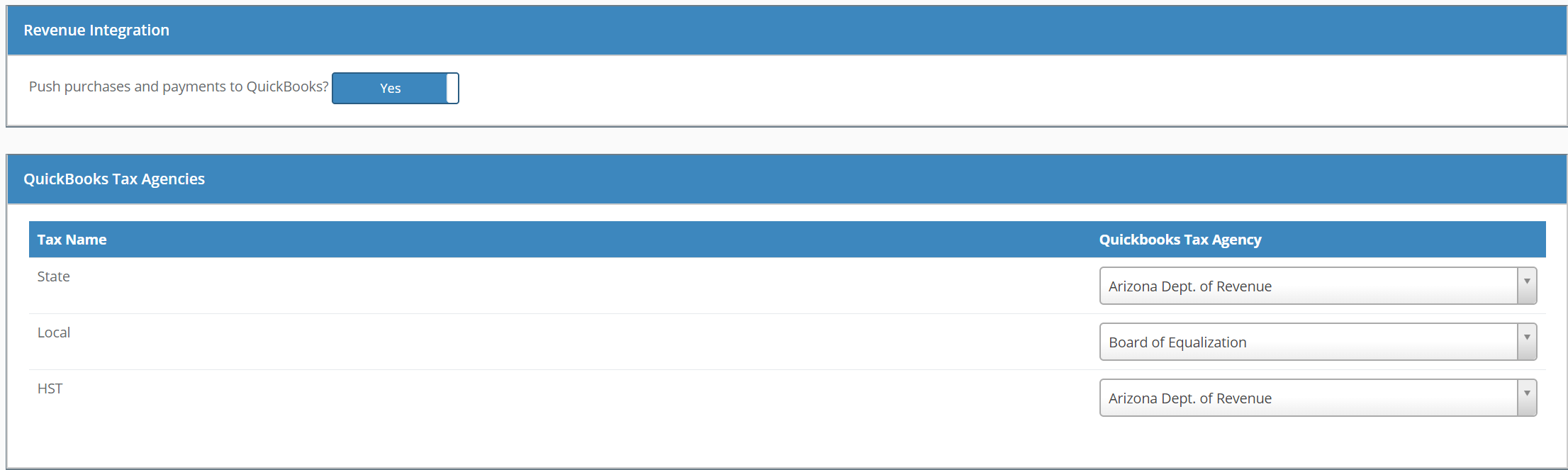
Above: Associate Halcyon Tax Entities with QuickBooks Tax Agencies.
Next you will integrate your line items with QuickBooks. When you configure, Halcyon will create Items in QuickBooks that correspond to the items you've created in Halcyon. So if you have an item in Halcyon called "Casket", an Item in QuickBooks will also be created called "Casket". This happen automatically, and you only need to select the corresponding Account for each Item.
- QuickBooks does not allow two items with identical names, so to use the previous example: If you already have an Item in QuickBooks called "Casket", Halcyon will simply pair that QuickBooks Item with the Halcyon item. For this to happen, however, there must be an exact name match. If the Item in QuickBooks is called, for instance, "Caskets", Halcyon will ignore this Item and create a second Item called "Casket."
- QuickBooks' API does not allow certain special characters, such as &, -, and ". Before creating a corresponding item in QuickBooks, Halcyon will change these characters, for instance changing an item name like "Clothes & Jewelry" to "Clothes and Jewelry".
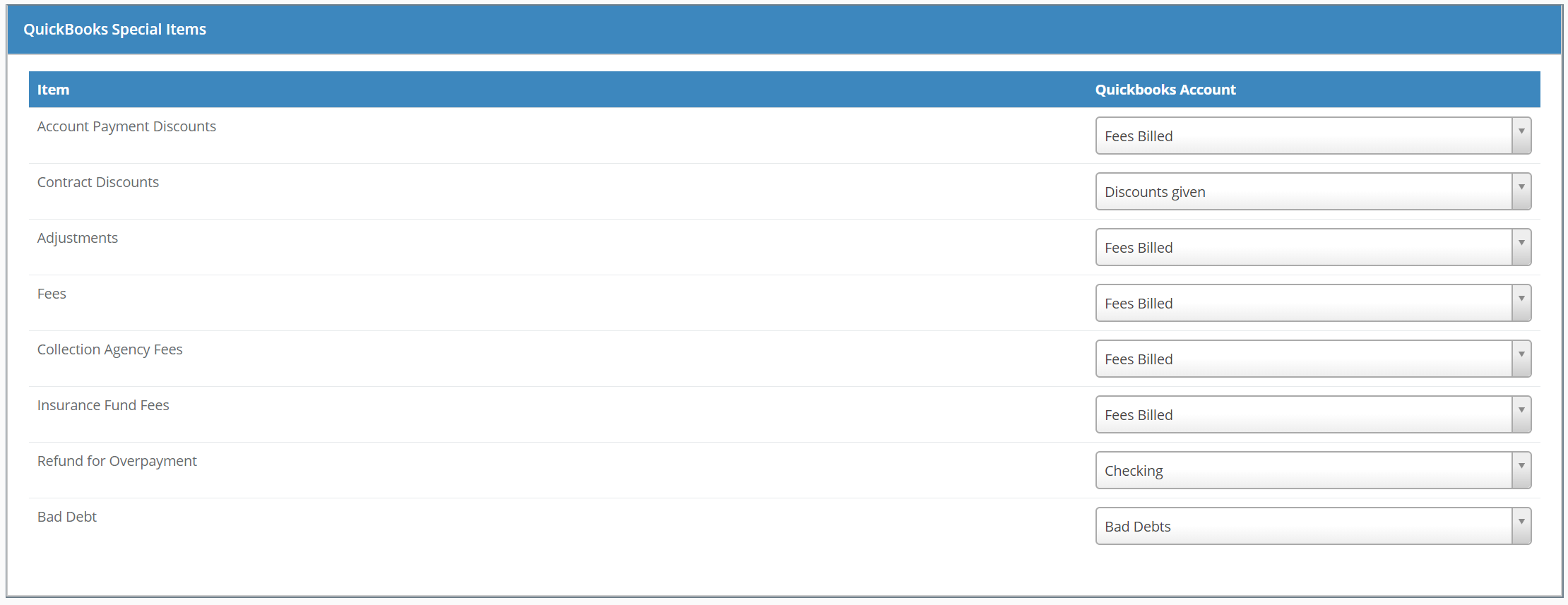
Above: These "special items" are different payment/refund/adjustment transactions that are available in Halcyon Case/Account. This is where you associate those transactions with a QuickBooks account

Above: This is where you associate Halcyon Static Line Items with QuickBooks Accounts

Above: If you have Additional Line items that you have setup (See Setup Contract Items: Other Service Items or Cash Advance Items) then any of those lines that are used on a contract will be coded to the QuickBooks account that you setup here.
Comments
0 comments
Please sign in to leave a comment.