The Override Tracking option will allow a user with Administrative access to circumvent the normal tracking process flow and move a decedent from one location to another open location regardless of any holds or checklist status.
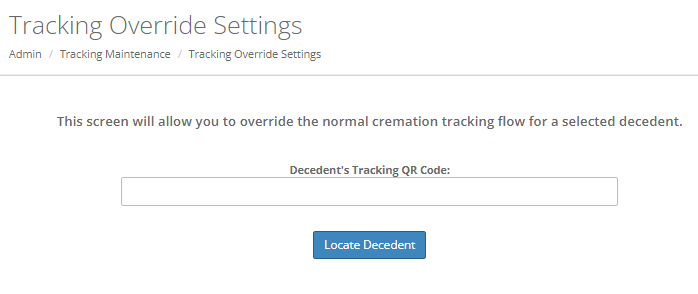
The override option can be found at Admin > Tracking Maintenance > Tracking Override Settings.
NOTE: Users that do not have Admin access can make "lateral" moves on the Tracking screen within the current step as long as the checklist has been completed. For example, if the checklist is complete the decedent could be moved from one location in Refrigeration to another location in Refrigeration.
To override the tracking, simply enter the tracking code for the decedent you wish to move and click the Locate Decedent Button.
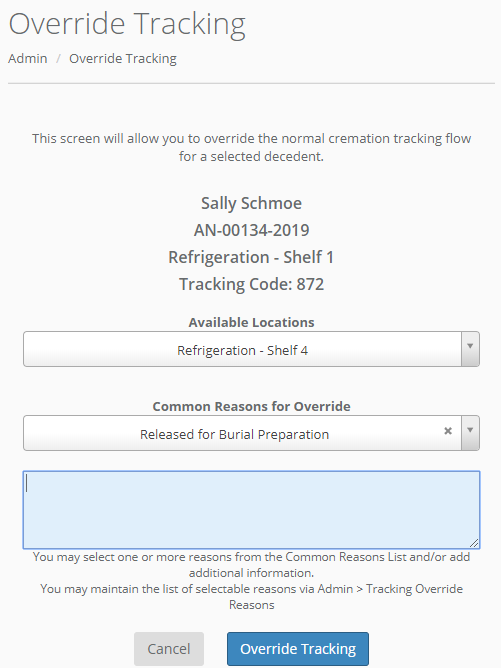
If the decedent is found in the tracking process, you will be presented with a list of the currently open locations and a list of common reasons, if any have been configured, for why the normal flow is being modified. You may select more than one reason and/or type into the reason field. (The common reasons are maintained via Admin > Tracking Maintenance > Tracking Override Reasons.)
All data fields are required.
If the decedent has already been released from Tracking you will only be presented with the option place the body back into the last tracking step. This is so that we can keep the original tracking history of when the body was removed from tracking. Once the body is back in the last step, if necessary, you can use the override tracking feature again to place the body in the desired step and location.
The tracking reports will include the modifications to the normal flow along with the override reasons.
NOTE: if you wish to allow admin users to totally remove a body from the cremation tracking screen you should enable the Tracking Removal Authorization via Admin > Tracking Maintenance > Removal Authorization Setting. A common reason for enabling this feature would be if you typically hold decedents in refrigeration for burial rather than cremation. This feature allows you to remove the body right from the Tracking screen rather than visiting the Admin Menu. See the documentation for Tracking Removal for more information.
Comments
0 comments
Please sign in to leave a comment.