Case Statuses allow you to assign statuses to your cases (i.e.- New, In Progress, On Hold, Complete.)
Setting Up Your Case Statuses
To activate this feature go to Admin>Miscellaneous>Case Statuses, and toggle Case Statusing to "On".
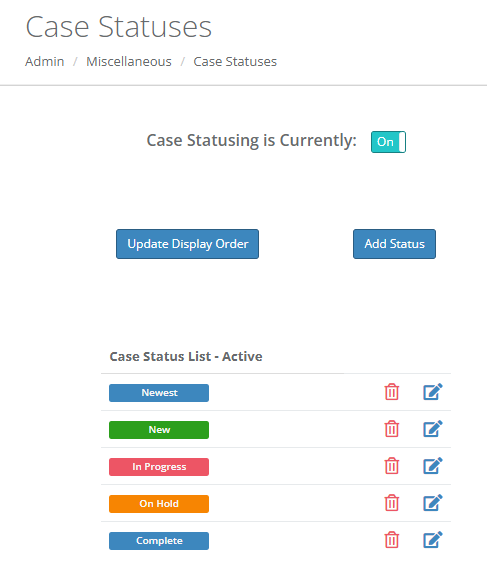
Click the Add Status button to create the case status you use. You will also assign a color that will appear on the Cases screen. Drag and drop the statuses to set the order they will appear in the Cases screen and click the "Update Display Order" button.
To assign statuses to your cases, click Set Case Status in the header of any case tab, select a status, then save by clicking Update Case Status. You can update statuses the same way.
Using Case Statuses
When you assign statuses to your cases, you will be able to see the statuses of your cases on the Cases menu. 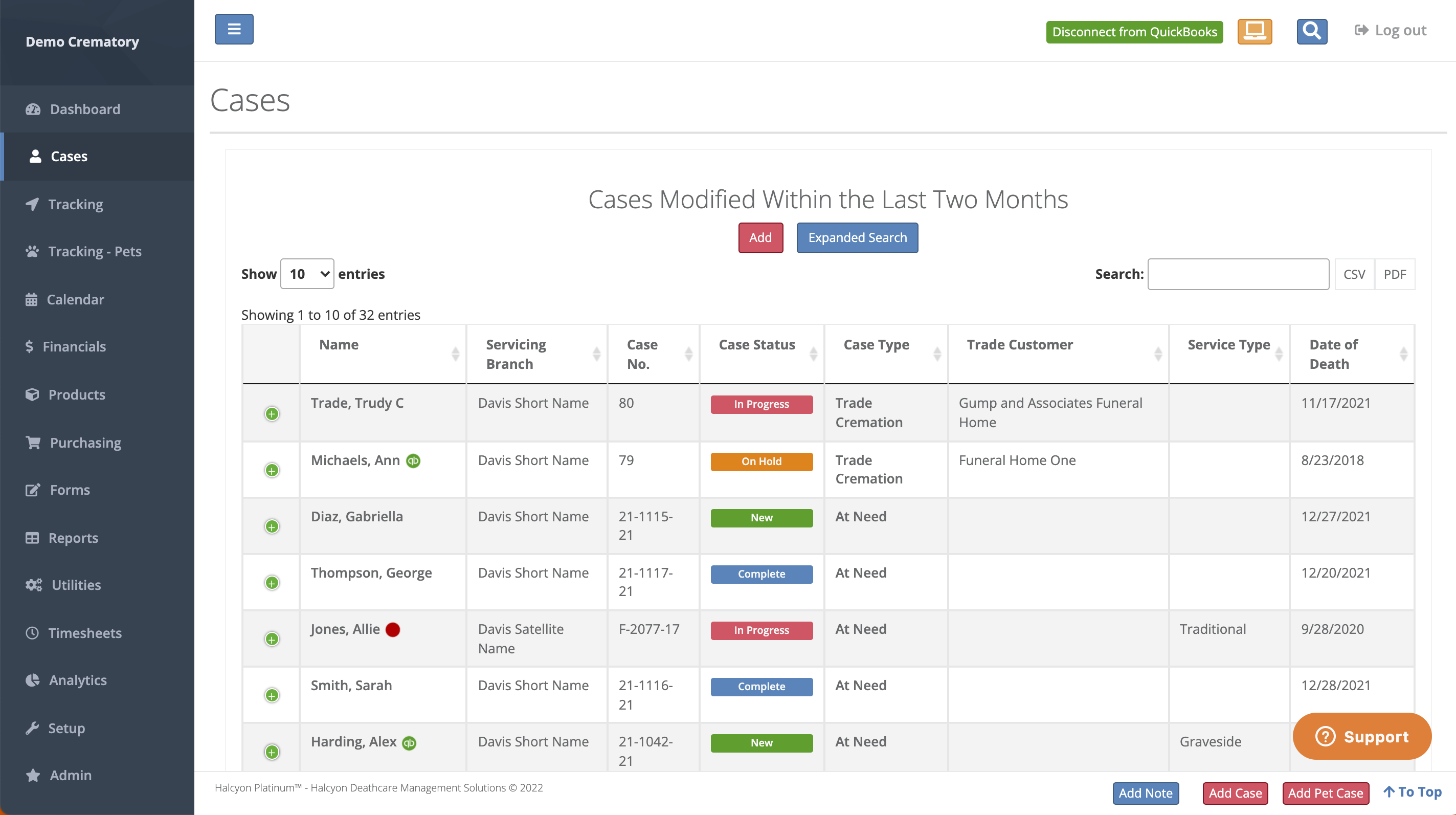
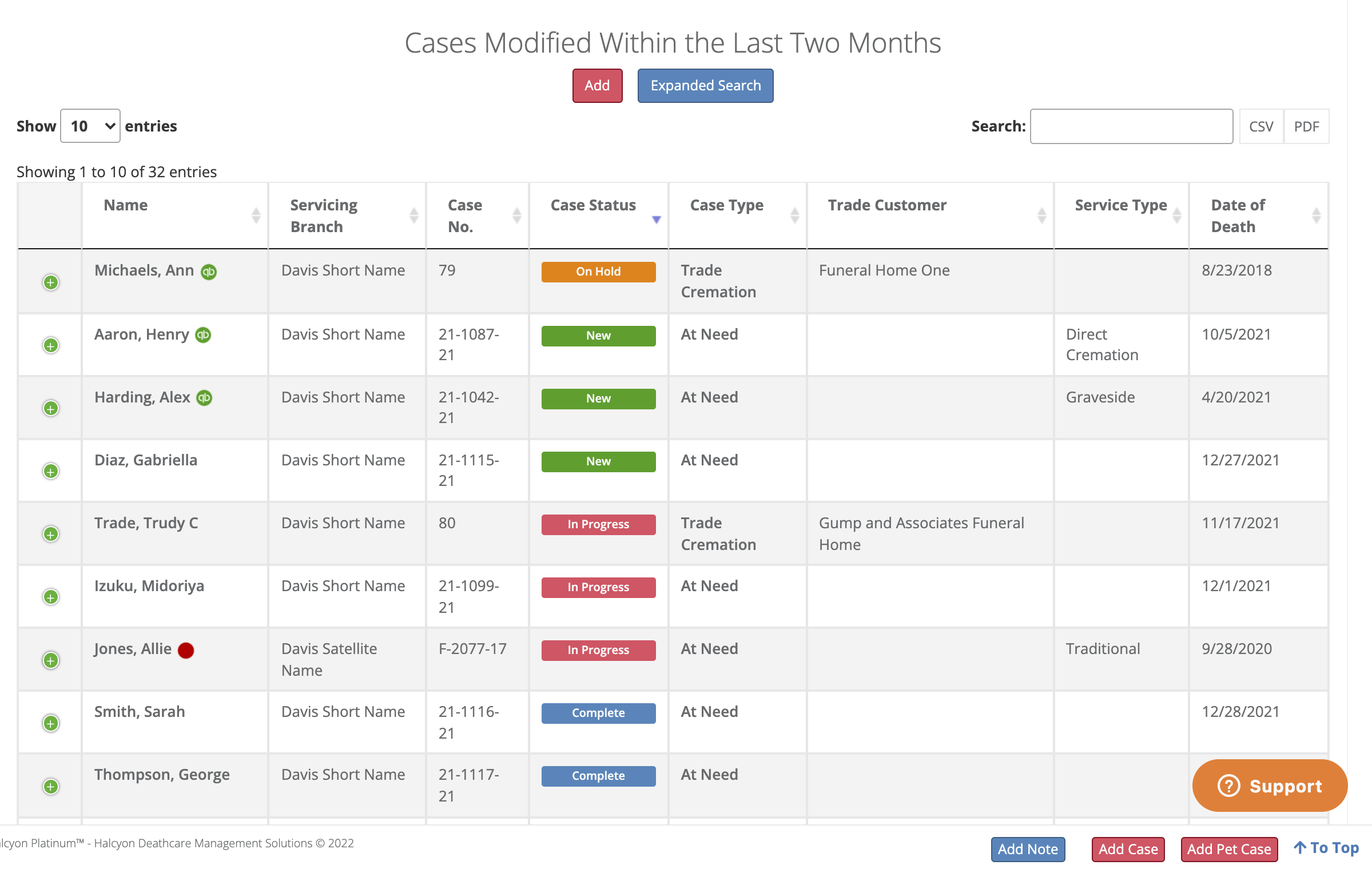
To sort this table by case status, click the Case Status heading twice.
A report to list the history of status changes made to a case is at Reports>General>Case Status History Report. (See Admin>Miscellaneous>Reports to set visibility and access levels to this report.)
Comments
0 comments
Please sign in to leave a comment.