Password Reset Control
All users can change their password at any time by clicking on the green gear icon on the upper right corner of their Halcyon screen, then selecting the Change Password button. This screen provides Administrators the ability to require users to change their password at regular intervals and to set the number of unsuccessful password change attempts allowed before a user's access is locked out. Setting values to "0" turns off this feature.
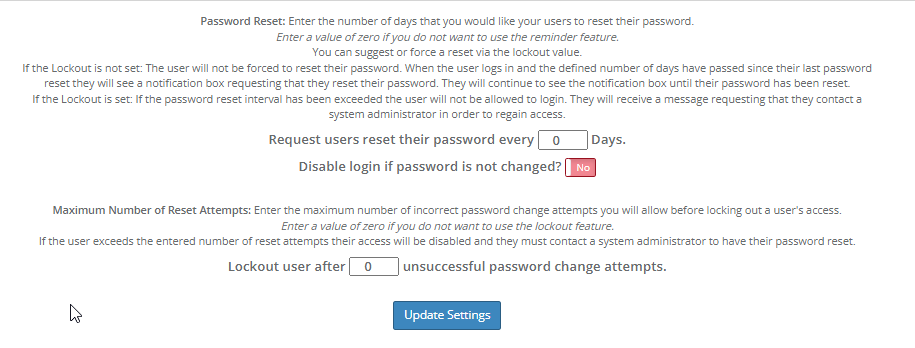
Enter the number of days after which you'd like to request users to reset their passwords. A value set to 0 will turn off this feature.
You can choose to disable logins if passwords have not been changed. If you choose to disable login, you will be asked to enter the number of days allowed as a grace period before the logins are disabled. If you want the user to remain able to log in even if they have not changed their password after requested, toggle this option to "No".
Additionally, you can set the number of password change attempts allowed before a user's access is locked out. After a user has reached the number of unsuccessful password attempts, their access will be disabled and they will be prompted to contact a system administrator to reset their password. A value set to 0 will turn off this feature.
Comments
0 comments
Please sign in to leave a comment.