Multi-Factor Authentication
What is Multi-Factor Authentication?
Multi-factor Authentication, also known as Two-Factor Authentication or 2FA, adds another validation step to the login process. Halcyon multi-factor authentication adds a second level of authentication for mobile devices. After the the user enters their username and password on a new mobile device, they are required to perform a quick one-time registration process. After the device is registered, a 7 digit code will be sent to that device which must be entered into Halcyon before the user is fully logged in. Enabling this feature is optional, but suggested.
Enabling Multi-Factor Authentication in Halcyon
Enable Multi-Factor Authentication for all of your users from the Admin > Staff Maintenance and Security > Multi-Factor Authentication screen.
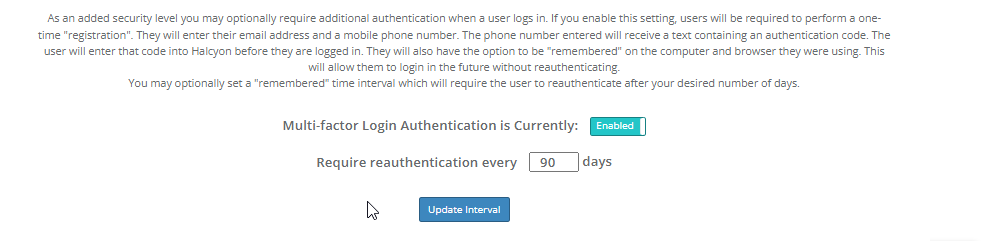
You can turn on and off the requirement by clicking the "Multi-factor Login Authentication is Currently" toggle button. If enabled, you must set the number of days your users are required to re-authenticate. After your specified number of days have passed since authentication, the user will be required to re-authenticate (by receiving and entering the 7 digit code) even if they have trusted the device and browser via the "Remember Me" button.
Registering and Authenticating a Device
The first time a user logs into Halcyon from a mobile device, they must complete a one-time process to register the phone number that will receive the code in order to complete their login.
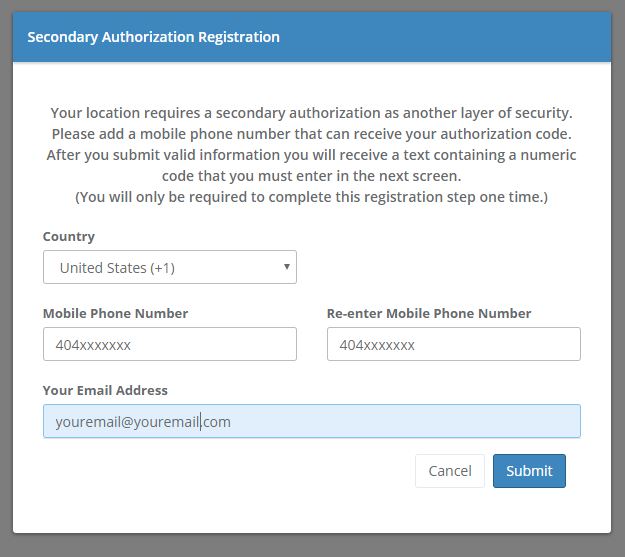
If a valid number is submitted, it will be registered and the device will receive a 7 digit code by text. That code must be entered on the next screen in order to complete the login process.
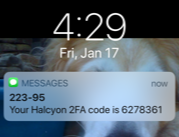
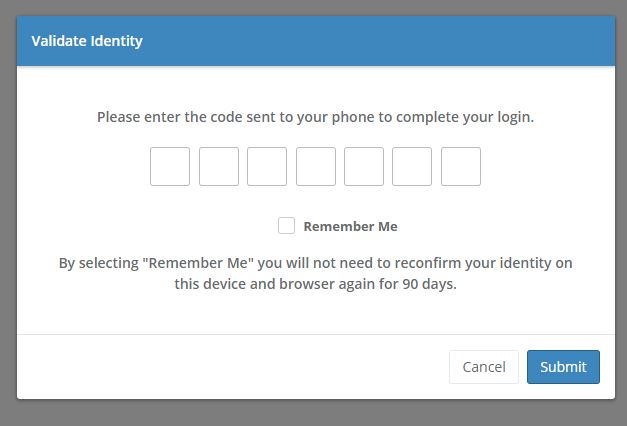
The user has the option to set the device and browser they are using as "trusted" by clicking the "Remember Me" checkbox. By doing so, they will not need to enter a code again until the number of days defined by the Administrator have passed. In the screen shot above the re-authentication interval is set to every 90 days.
Reauthentication
After the validation period has expired (of if the Remember Me checkbox was unchecked), the user will receive a text with a new 7 digit validation code that they must enter to complete the login process.
Comments
0 comments
Please sign in to leave a comment.