Trade Accounts
This option allows you to add trade payments.
You can enter payments in a couple different ways. One is by visiting the Account tab for each client and the other is via the Trade Payment options on the Financials menu. Adding payments from the option on the Financials menu allows you to apply a single payment to multiple accounts. You may also prefer to use the Financial menu option to enter your payments if you enter payments in batches rather then as received.
Select a trade customer from the dropdown list, and a list of cases with a balance will display.
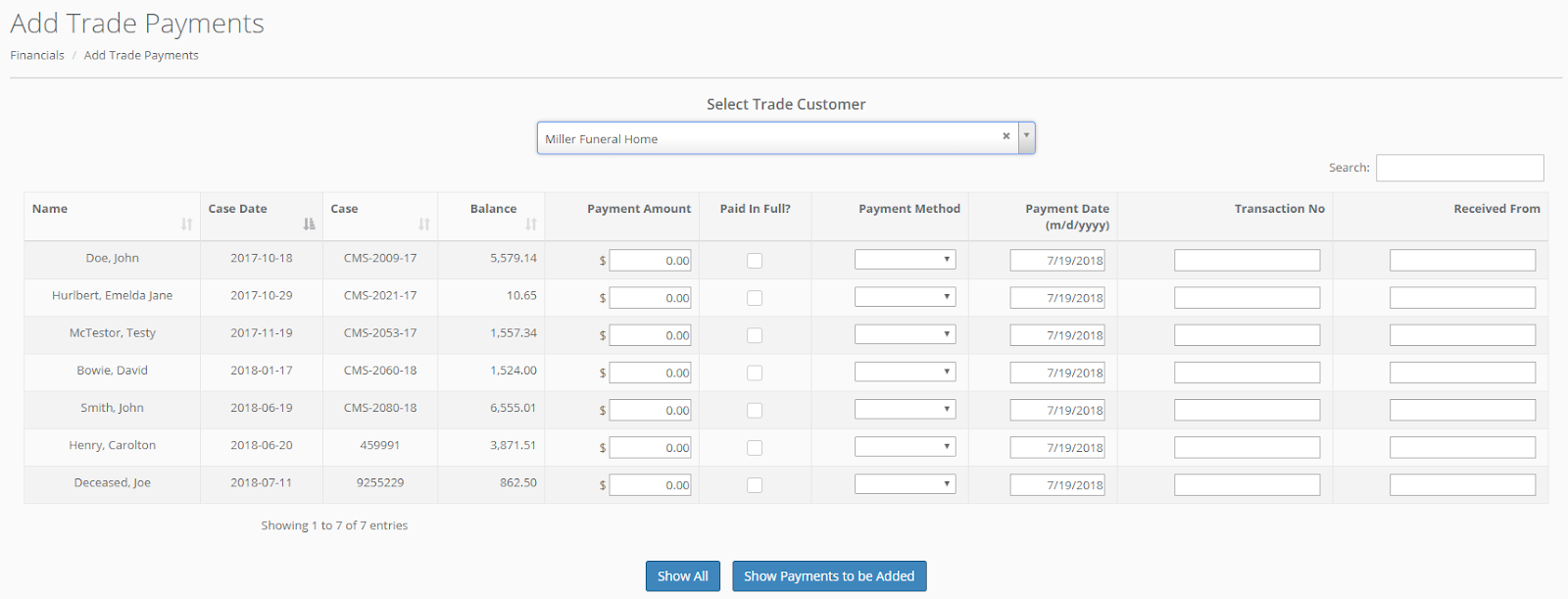
You can enter payments by typing in your payment amount, payment method, payment date, transaction number, and who the payment was received from. Use the "Paid In Full?" checkbox to quickly fill the payment amount with the case balance.
Apply a single payment to multiple accounts
You may also apply a single payment to multiple accounts. Click the "Apply one payment to multiple accounts" button.

When you click that button you will be able to enter the amount and other details for that payment. The payment details will be automatically filled in for all cases and can only be edited from the top panel. Note that even though the details are added for each open account, a payment will only be added if you enter a payment amount that is not 0.
The amount remaining to be allocated will be calculated for you as you check off the Paid In Full? boxes or enter the partial amounts that should be applied to each account.
You will not be able to click the "Add these payments" button unless the Remaining to be Allocated amount is $0.
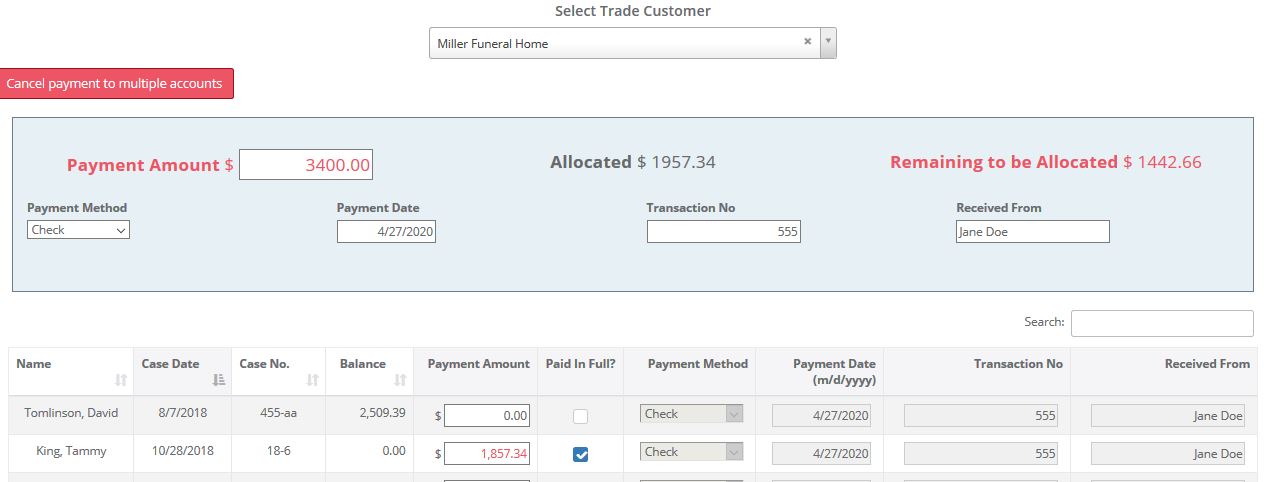
Click the "Show Payments to be Added" when you have entered all your information. This will give you the opportunity to double check the payments you will be adding. This step is especially handy if you have a lot of open accounts and are only making payments on a few of them.
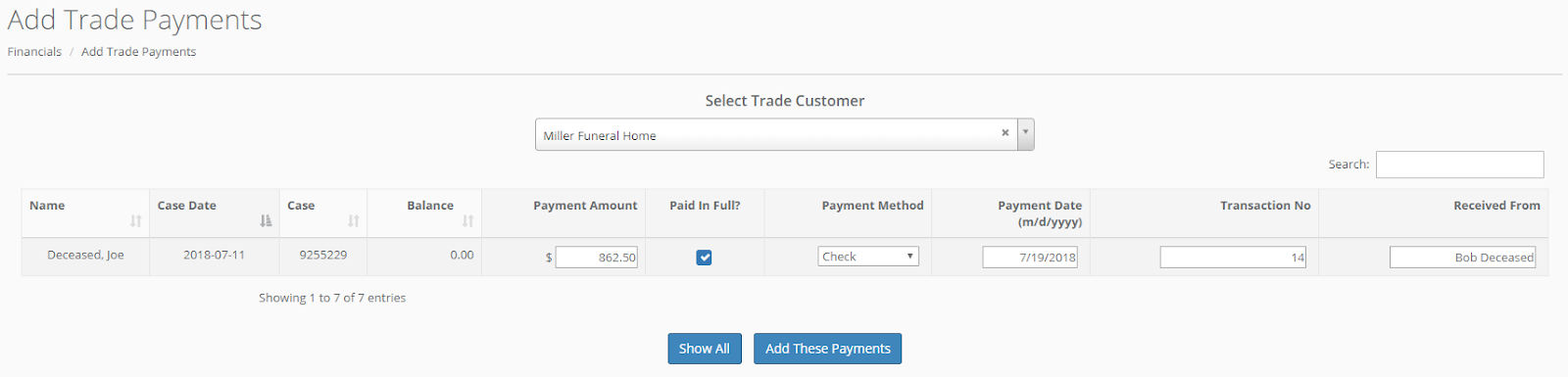
Click the "Add These Payments" button if you are satisfied that your information is correct or click "Show All" to go back and make any necessary changes.
Apply a single credit card charge to multiple accounts
Use the same procedure outlined above to select the payments to be added. If you chose a payment type of credit card and you are connected with Halcyon's payment processor you will see buttons that will allow you to charge the credit card or simply enter the payments for the accounts.
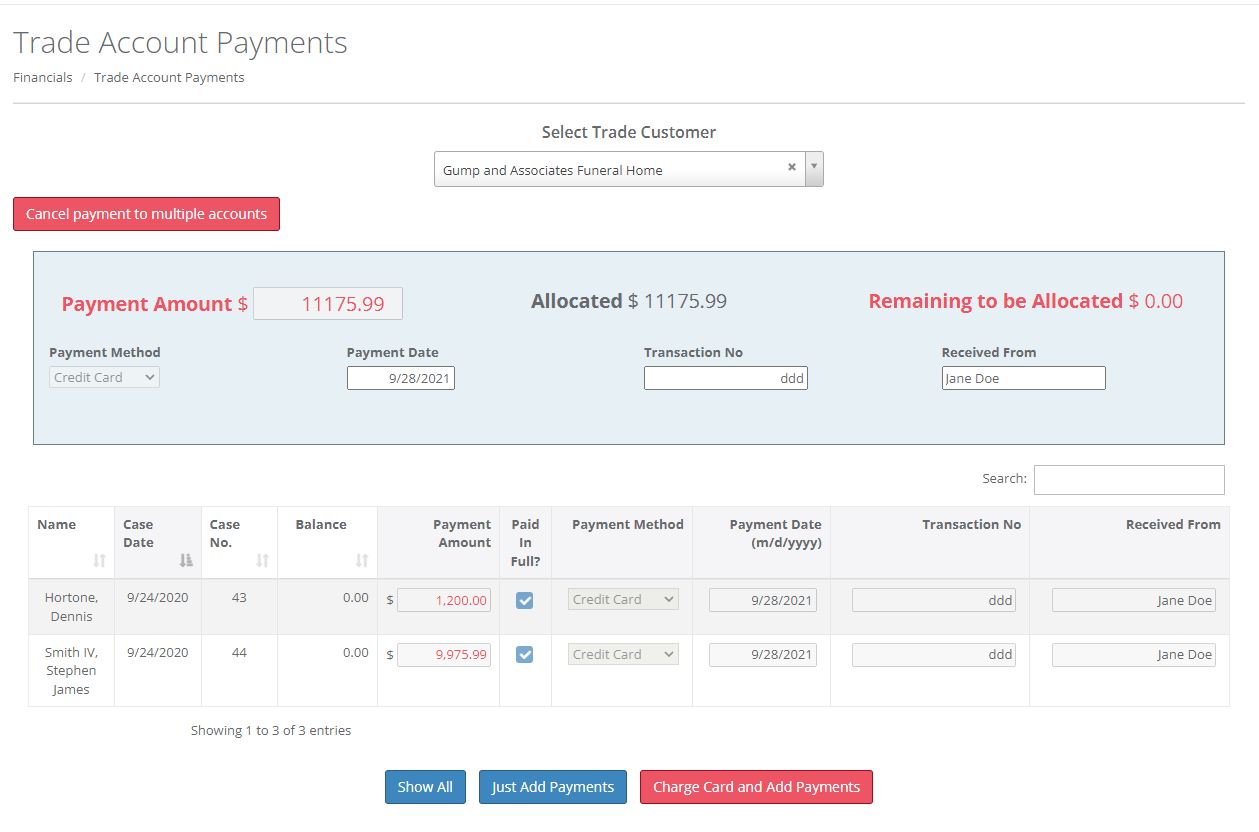
If you click the "Charge Card and Add Payments" button you will have the ability to enter the card information and charge the card.
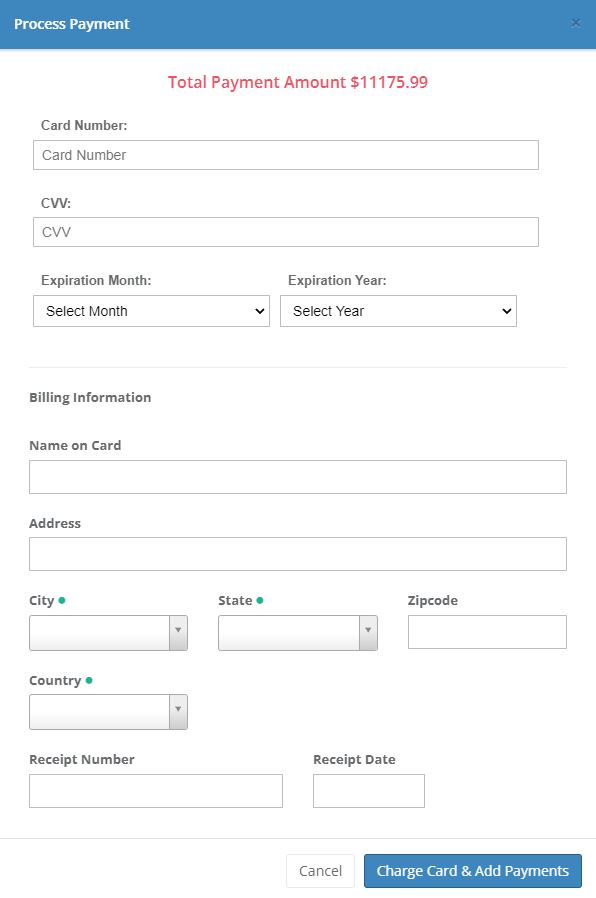
Click the "Charge Card & Add Payments". A payment in the amount entered for each decedent will be added to each decedent's account and appear on their "Account" screen.
Comments
0 comments
Article is closed for comments.