This screen gives you the ability to quickly enable or disable the availability of a form on ALL of your current Partner's Dashboards. To set the visibility for a form for one or more, but not all, partners visit Admin > Associated Facilities Maintenance > Partner Portal Access.
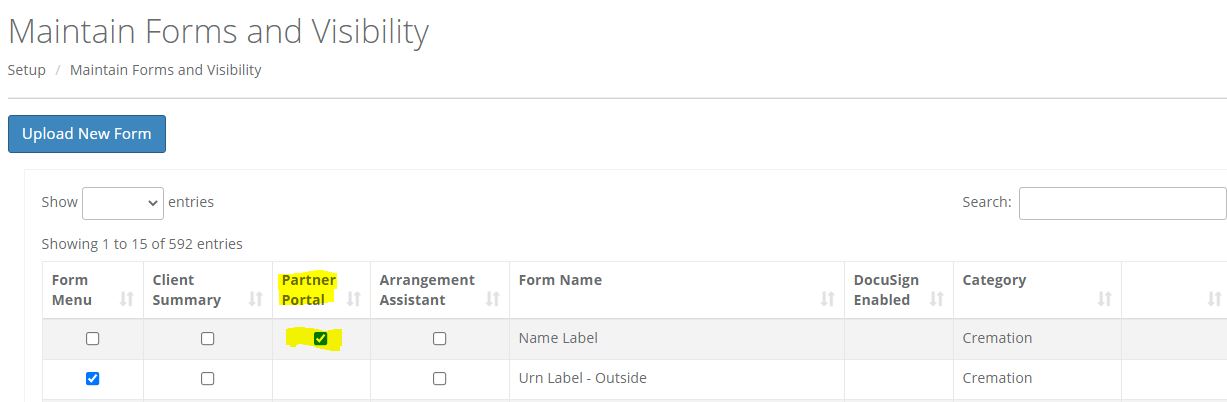
The list of forms shown are all of forms that are currently set as available to your partners. This is controlled via Setup > Maintain Forms and Visibility. The form's checkbox for Partner Portal must be checked.
The Forms Visibility Maintenance screen will tell you how many partners you currently have configured and the number of those partners that you have currently set to active. Your chosen form will be made accessible or not for all of your partners, including those that may not be currently be active.
Click the Add to All button next to the form to add it to all of your partner's dashboard.
Click the Remove from All button next to the form to remove it from all of your Partner's Dashboard. This not NOT remove the form from the library; it will only remove it from being accessible by your partner's via their Dashboard. You will be given the opportunity to confirm your choice before the form is made unavailable.
You may also set or remove a preferred form for all of you partners from this screen. If you set one of your available forms as your preferred form, your partner will have the ability to print that form right from the success pop up that appears after they add or edit a request. The use of a preferred form is optional. Its just a way to make it easier for you partners to print forms that may be required for all requests.
Note that if you use this screen to set a preferred form it will be the preferred form for ALL of your partners. You may only have one designated preferred form for each parnter but they don't have to be the same preferred form. If you want to set a different preferred form for you various partners you must visit Admin >Associated Facilities Maintenance > Partner Portal Access and set the preferred form from that screen.
The screen shot below shows an example of what your partner would see after they save a request when you have designated the Pet Care Request (Vet Clinic Originated) form as their preferred form.
Comments
0 comments
Please sign in to leave a comment.