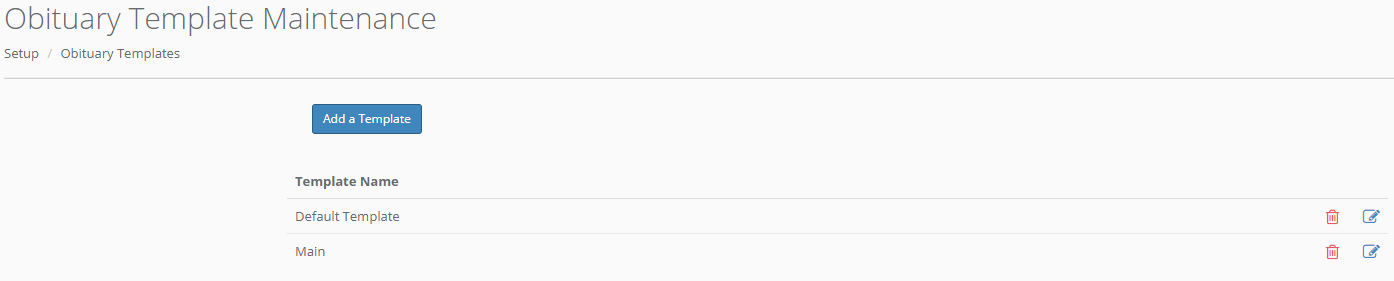
This screen allows you to edit, delete, and add new obituary templates that will populate with fields that you designate.
Click "Add a Template" to add a new obituary template. Adding a new template or editing an existing template will take you to a second screen.
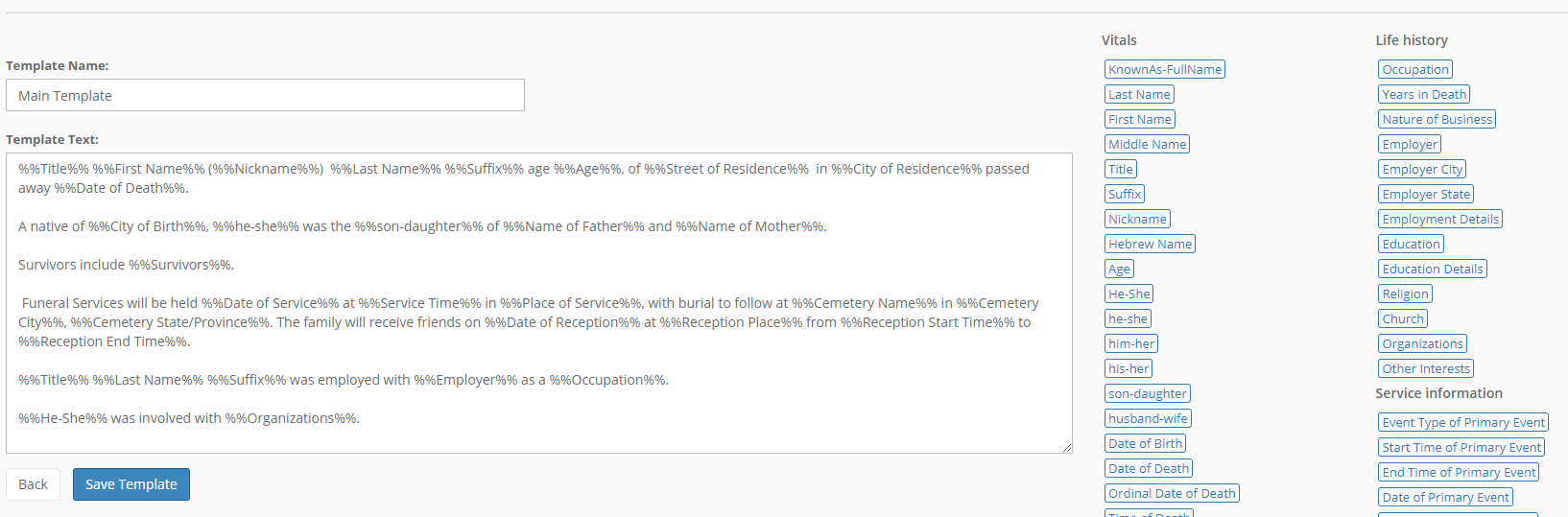
To edit the obituary text body, simply enter the text you would like to appear. Wherever you would like case information to appear in the body, just click on the name of the field from the list of available tags on the right and it will automatically be placed in the text body. The field name will appear with double percentage characters around the name. Do not remove the percentage marks since these are the characters Halcyon uses to determine where client information should be substituted when the client's obituary text is auto-generated.
You can use obituary templates to save a lot of time if you utilize the available data tags. Note that we have tags available for pronouns (he-she, He-She, him-her, etc.)! When you generate an obituary from the case's Obituary tab, you will always be warned if there is an "empty" data tag (for example, if you use %%Place of Service%% in an obituary template and you run this template for a case with no service information). You can either go back and add this information for the case or simply type over/remove the tag in the obituary before you save.
Comments
0 comments
Please sign in to leave a comment.