In addition to the capability to add notes on the Client Overview screen, you may also add a Note at any time directly from the Add Note button located on the footer of each page.
This feature functions the same as adding the note on the case Overview screen except that you must select the client. This is a great way to quickly add a note and optionally notify other staff members without the need to interrupt your current effort.

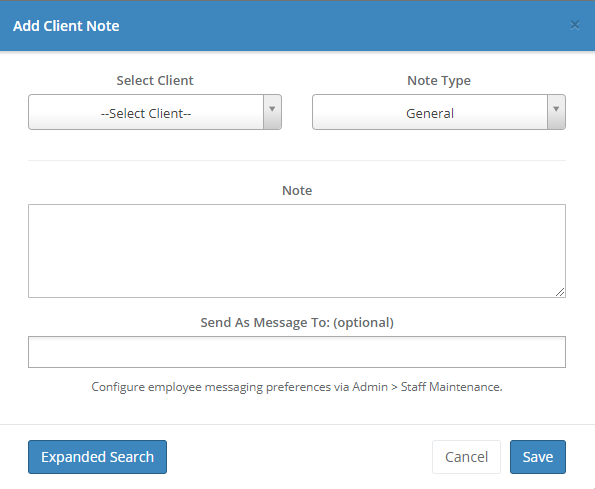
When you add a note you will select a client and enter a Note Type. You can add and maintain your note types via Setup. The Note Type simply allows you to classify your note entries.
In addition to saving the note, you may also optionally send it via email and/or text to staff members. If you wish to use this feature you must define the staff members messaging preferences via Admin > Staff Maintenance. The "Send As Messages To: (optional)" will only show staff members who have had their messaging preferences defined.
Please note that additional charges may apply for text messaging depending on the mobile phone plan. Also, the successful sending of messages does not guarantee delivery since spam blockers and other security features on the staff member's device may prevent delivery. It's always best to send an initial test message to ensure receipt.
See the Client Overview section for more information regarding the display and maintenance of notes.
Additional features, such as messaging for client contacts and trade partners, and auto-filling message templates, are available as a Premium Messaging feature.
Comments
0 comments
Please sign in to leave a comment.