Halcyon allows you to enter case data and other information through voice recognition. In order to use this feature, you will need to run the system using Google Chrome as your browser on a PC or Mac. Most of the screens in your Halcyon system have voice recognition available as a feature. To enable voice data entry, simply click the microphone icon on the bottom right of your screen next to the Help Beacon.

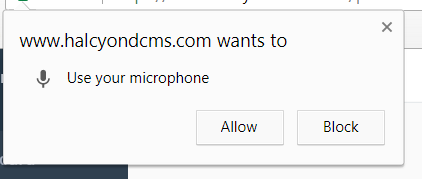
Chrome may request microphone access in order to enable this feature- click "Allow" to continue. You will only need to allow access the first time you use this feature.
Once voice recognition has been activated you will receive a success notification at the top of your screen and the microphone icon will begin to blink red.

You may now enter case data and other information simply by speaking aloud. Data fields with voice input capability will be highlighted in orange. To disable voice recognition, simply click the microphone icon on the bottom right of your screen.
Comments
0 comments
Please sign in to leave a comment.