Partners can use their Partner Portal to submit and monitor requests, using a unique URL and login information provided to you by your Servicing Partner. This article explains the options available in the Partner Portal Basic Version and instructions for submitting/monitoring requests.
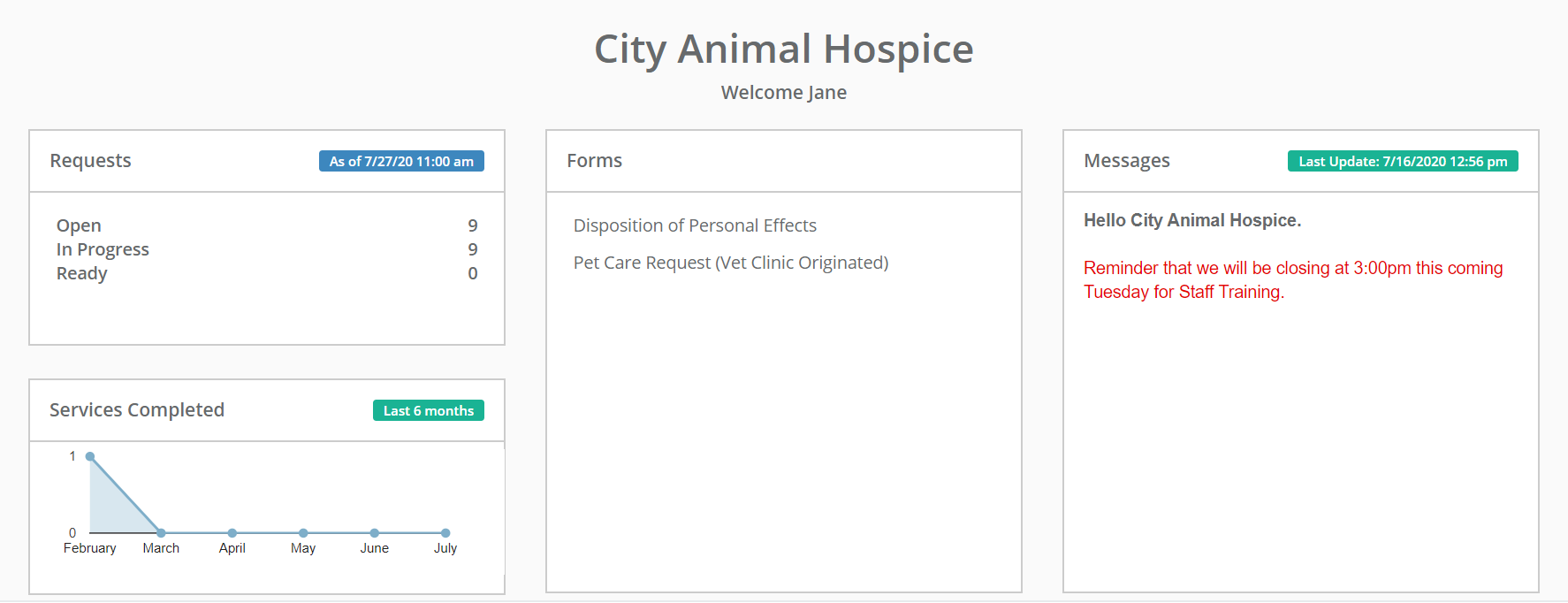
When you first log in to the partner portal, you'll see several widgets with different information in them. The Requests widget will show the number of current requests you have and their status. The Services Completed widget contains a chart of the services you've completed within the past 6 months.
The Forms widget contains any forms that have been made available to you. You can click these forms to select from a dropdown list of your open requests to generate the form for. The Messages widget will display any messages that have been set up for you and their update date/time.
OPEN REQUESTS PANEL
Beneath these widgets, you'll see a more detailed break down of your current requests.
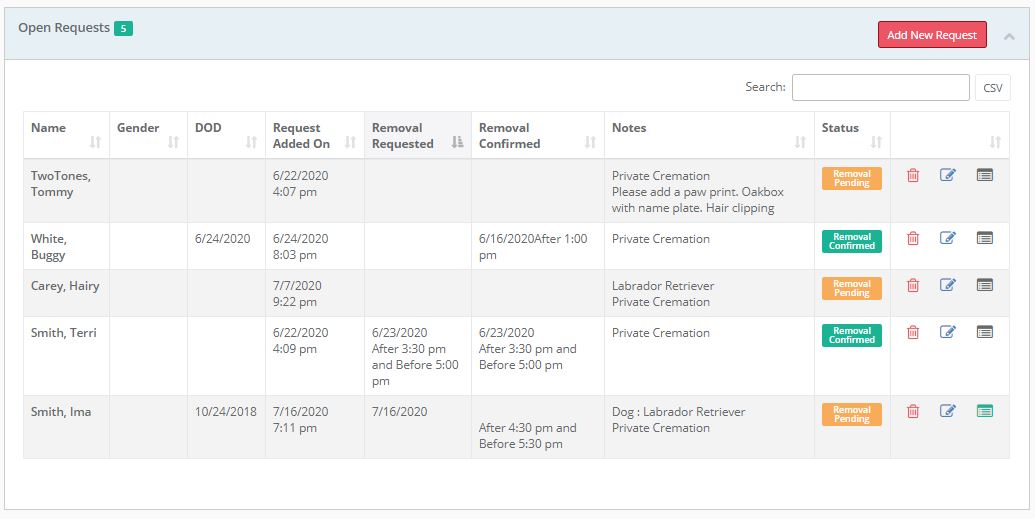
The Open Requests widget will show your open requests and their status.
Add a Request
Click the red "Add New Request" to add a new request. A form will appear for you to enter your request details. A red star next to a field name indicates a required field and a value must be entered before you can save the case. When you add a request you must select if this request is for a Removal or if you are going to deliver the body.
An automatic notification will be sent to your service partner (the funeral home or crematory) when you add a request informing them of your new request.
If you will be delivering the body, the status in the Open Request panel will change to "Delivery Pending". When your service partner acknowledges the request the status will change to "Delivery Confirmed".
For removals your service partner may perform removals for you on an "as notified" basis or on a regular schedule.
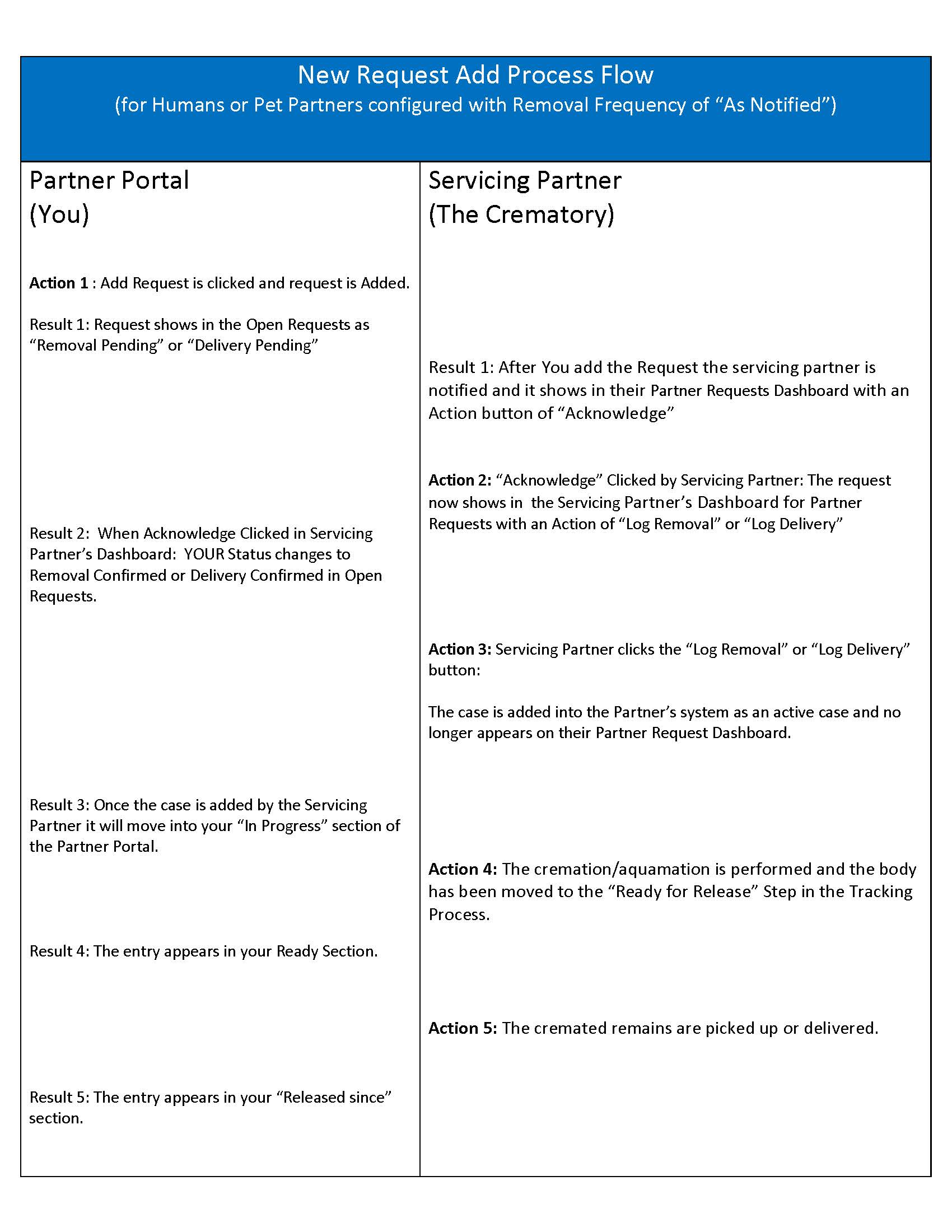
If you are setup on an as notified basis, when you add a request the status will first appear as "Removal Pending". When your service partner acknowledges the request the status will change to "Removal Confirmed".
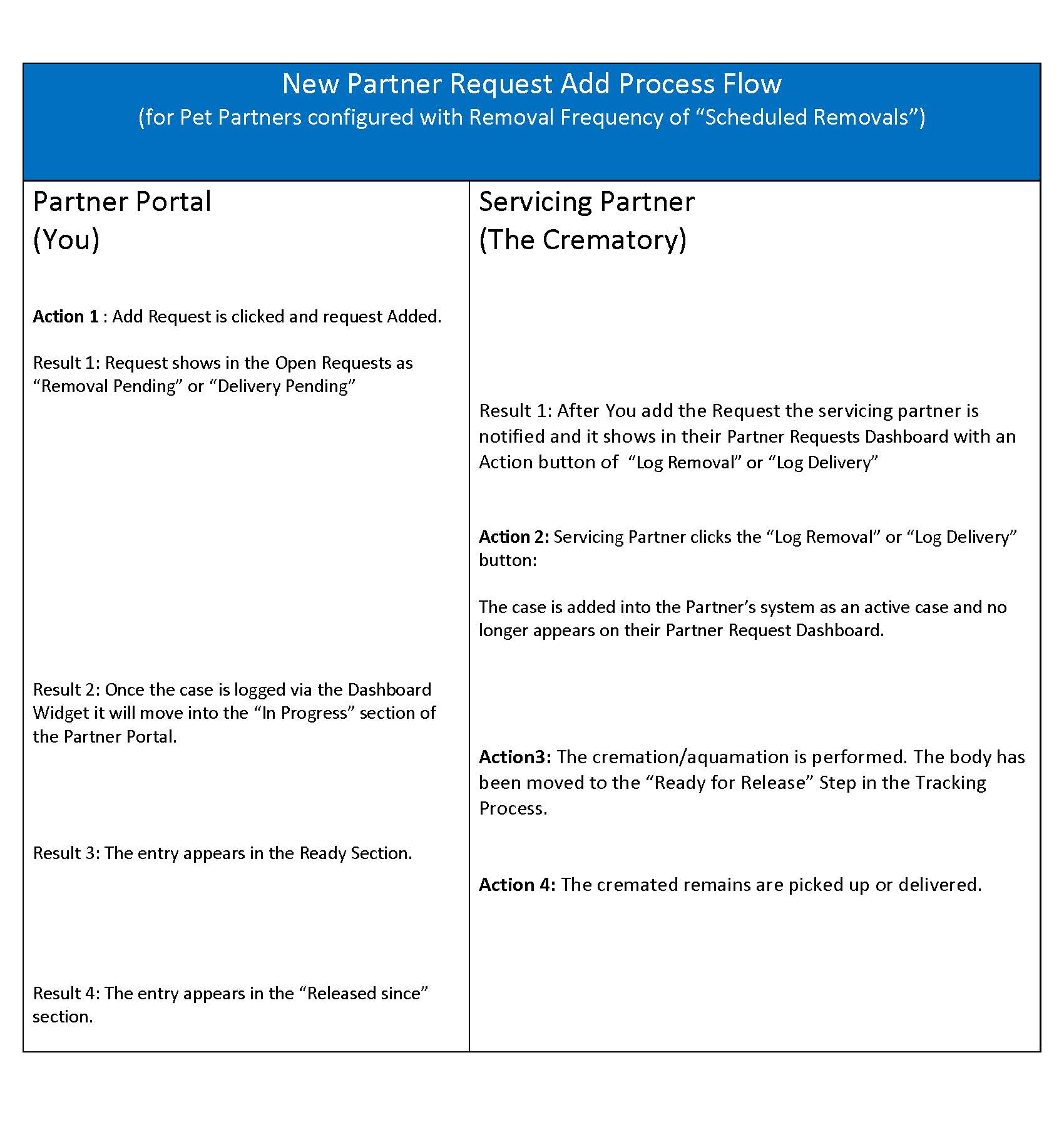
If you are a pet facility and have been setup on an a scheduled basis, when you add a request the status will first appear as "Removal Pending".
Once your service partner has taken custody of the body and added your request information into the tracking system the request will move from the Open Requests Panel to the In Progress panel.
Edit a Request
The blue edit icon will allow you to edit the information for the request. What information you may edit depends on the status of your request. You may edit all of your case information after you have added the case but BEFORE your service partner has acknowledged it. Once the request has been acknowledged by your service partner you may not edit the removal/delivery details but you may edit other information about your request.
NOTE: You may only make changes to a request if it is still in the Open Requests panel. If you need to make changes to a request after it has been received by your service partner you will need to inform them of the changes via another communication method.
Remove an Open Request
You can click the red trash can icon to remove a request.
Document/File Maintenance
The "files" icon will allow you to Add Documents to the request that your partners will receive when they accept your request. You will initially see a list of any documents that you have previously uploaded. You may edit the description or remove a previously upload document by clicking the appropriate icon.
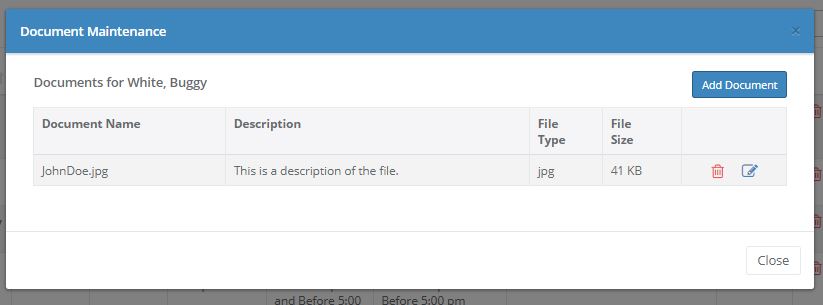
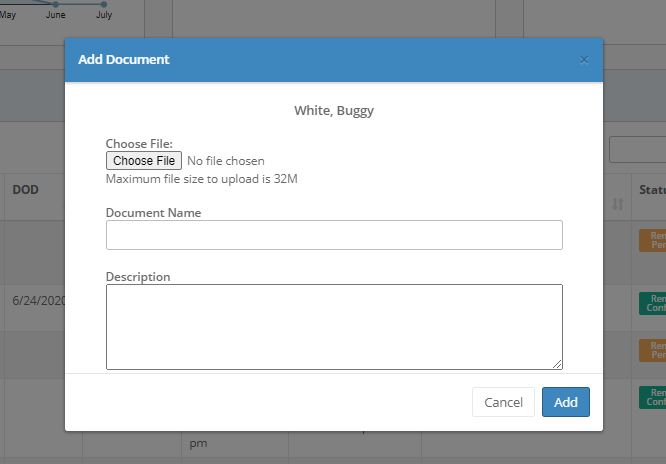
Click the Add Document button to add a file. You will be prompted to Choose the file from your computer, and enter the name of the document and a description.
IN PROGRESS PANEL
Beneath the Open Requests widget you'll see the list of your cases that are in progress by your service partner.
READY PANEL
The Ready Panel shows your cases that have been completed by your service partner but no yet returned to the person or facility you designated to receive the cremated remains.
RELEASED SINCE PANEL
The Released Since Panel will list all of your released requests from the past two months.
DETAILED REQUEST INFORMATION FLOW
The following charts detail the communication process between you and your service partner for a cremation request for both As Notified and Scheduled (pet only) Removals.
Comments
0 comments
Article is closed for comments.