Electronic Signature (using DocuSign)
If you would like to enable electronic signature in Halcyon please contact us at support@halcyondcms.zendesk.com. Electronic signature requires a DocuSign account and Halcyon will integrate with that DocuSign account. Halcyon users are entitled to a free trial of DocuSign as well as a discount on an annual plan (regardless of whether or not you choose to integrate DocuSign with Halcyon). Click here to access special pricing for Halcyon customers.
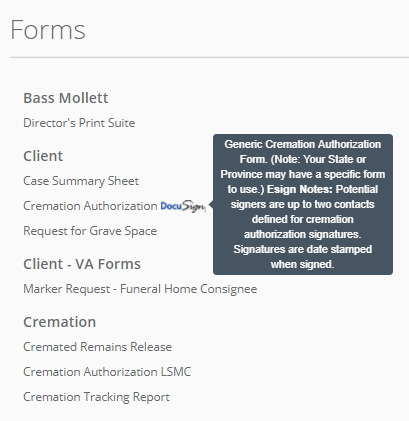
If a form has been enabled for electronic signature you will see a DocuSign logo (shown below) next to its name in the Forms menu as well as on the Maintain Forms and Visibility screen.

If you would like to enable a new form for DocuSign please contact support@halcyondcms.zendesk.com.
Hover over a DocuSign-enabled form name to view potential signer notes. You may need to revisit a client's contacts page to adjust roles to ensure that the signers are correct before running a form.
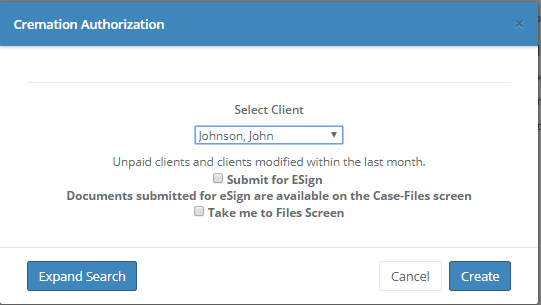
Once you have selected a form you may select the client from the dropdown menu to run it. Check the "Submit for signatures" checkbox to stage the form to Client/Files for electronic signatures. Check the "Take me to the Files Screen" checkbox to be taken to the case's files screen once the form has been staged. You can, while on case/files, send documents from Halcyon to DocuSign for electronic signature. Halcyon will group documents into an envelope. Then you can, from case/files, see the status of all envelopes' signatures.
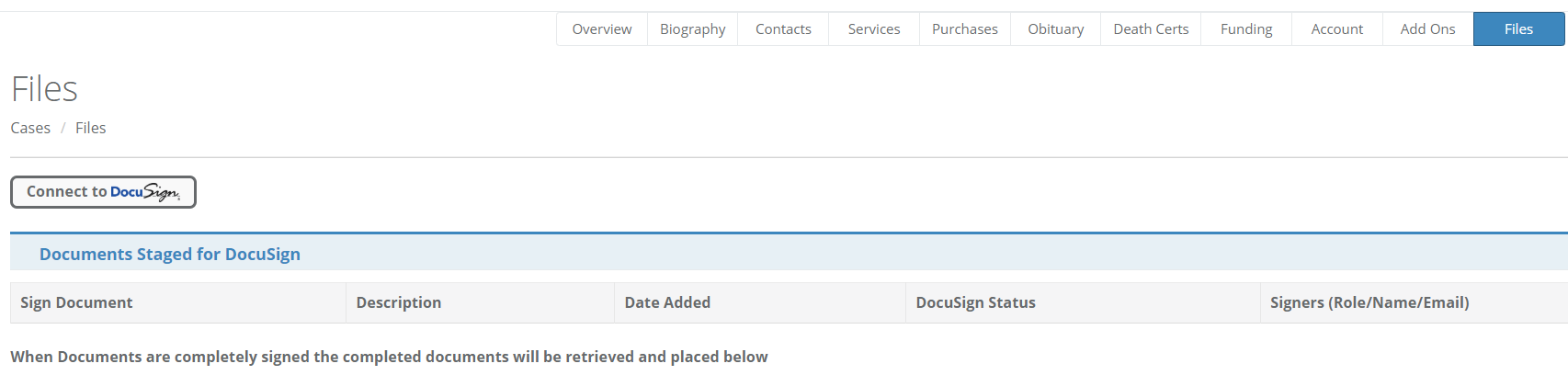
The first time you use DocuSign you will have to select the Connect to DocuSign button and then login to your DocuSign account. Authorization tokens will be passed between the two software so that Halcyon can interact with your DocuSign account. You shouldn't have to do this connection again unless considerable time passes since Halcyon sent documents to DocuSign for you.
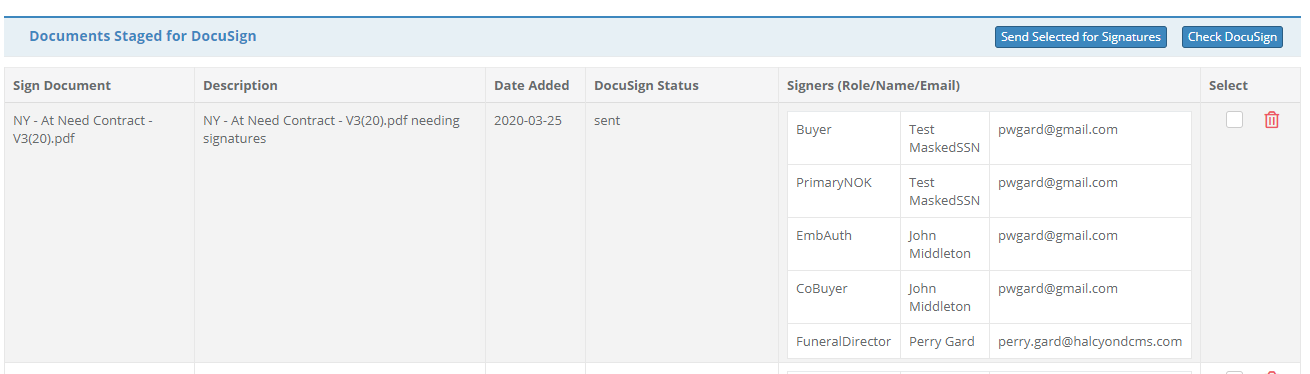
Then just select the documents you want to send and hit "Send Selected for Signatures". You can see any errors with contacts here and make corrections first.
Select the button "Check DocuSign" and Halcyon will interrogate DocuSign and update the document's status. If the document is completely signed then Halcyon will grab the completed document from DocuSign and return it to the Case/Files tab just as if it was scanned in.
See More
A more complete description of how electronic signatures work is available on this related help article: https://halcyondcms.zendesk.com/hc/en-us/articles/6002703393812-Electronic-Signatures-in-Halcyon
Comments
0 comments
Please sign in to leave a comment.