Submit a support ticket if you would like to connect Halcyon with your Batesville website.
Once Halcyon and your Batesville website are connected you will see a "Batesville Website Integration" panel on your At Need clients' Overview page. Each service type you have defined via your Admin functions will appear with a checkbox; your actual panel may look different than what is shown in the screenshot.
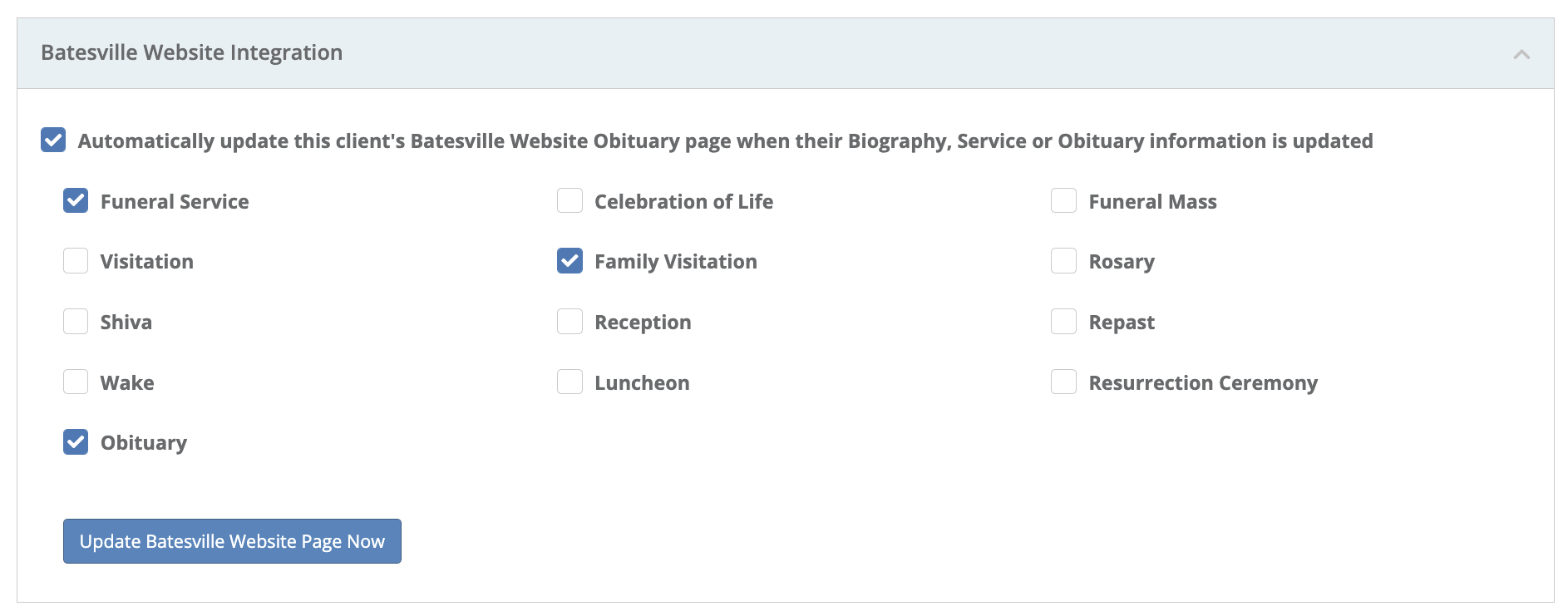
If you do NOT have the "Automatically update this client's..." checkbox checked you must visit the Overview page and click the "Update Batesville Website Page Now" button in order to update the publicly facing Batesville website with the latest information you have entered into Halcyon.
If you check off the "Automatically update this client's..." checkbox, whenever you make an update on the Biography, Service or Obituary page the Batesville website obituary will be updated with the information currently in Halcyon. This checkbox is NOT checked by default allowing you the ability to enter the information into Halcyon before any of it will appear on your Batesville website.
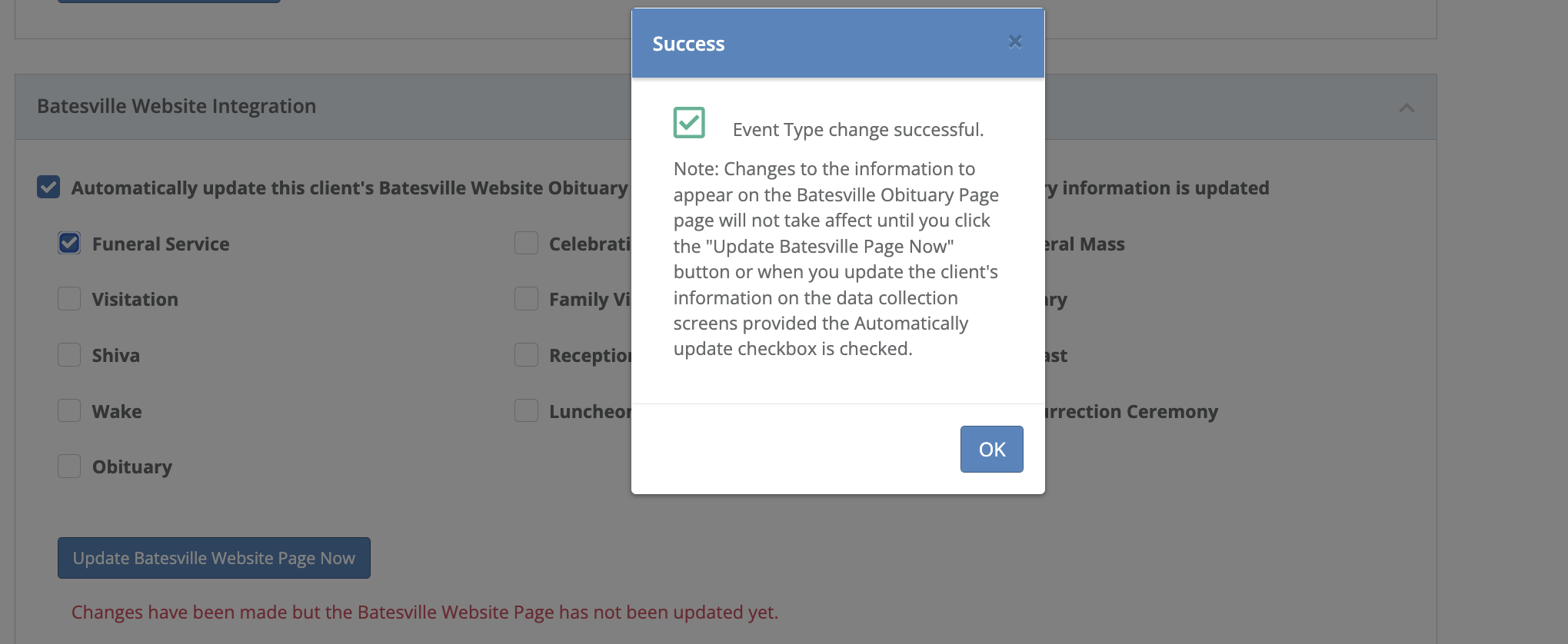
You may check off the service types you would like to appear on the client's Batesville obituary page. When you make a change to a checkbox you will be given a warning notice reminding you that you must click the "Update Batesville Website Page Now" button in order for your changes to appear.
Halcyon will not send private events to your Batesville Website. If you do want a family gathering, family visitation, or other event to be published on your Batesville Website, you must have "Private Event?" set to "No." Alternatively, you can manually add a private event from the Batesville side.
MULTI-LOCATION?
You can sync your Batesville and Halcyon locations and include that information in the data that gets sent to your Batesville Website. Go to Admin > Integration Partners > Batesville Website and select the appropriate Batesville Website location for each of your Halcyon locations.
Comments
0 comments
Please sign in to leave a comment.