Matthews-Aurora Integration
Product selection and ordering can be integrated with Matthews-Aurora. If you are interested in using this integration, please contact Halcyon at techsupport@halcyondcms.com and we will request the necessary information from Matthews-Aurora to get you started.
Configuration
Configure your connections by going to Admin>Integration Maintenance > Matthews-Aurora and select the Matthews-Aurora Location Name and the user responsible for ordering.
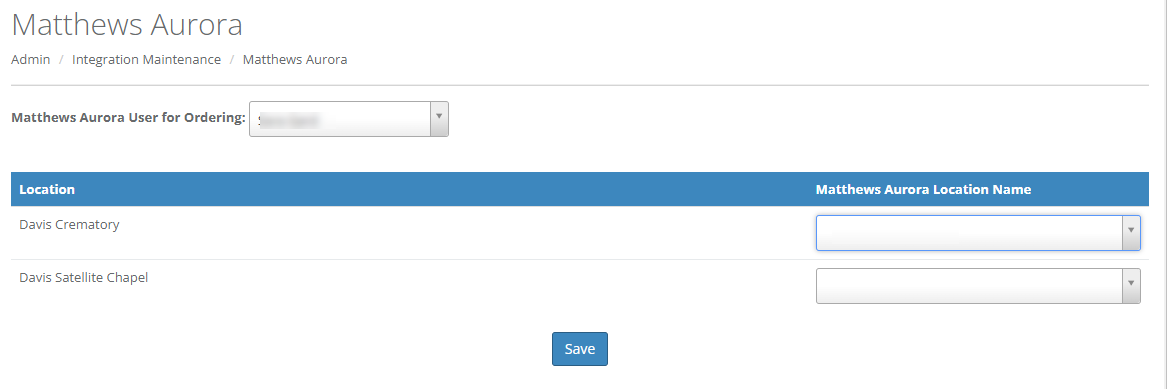
The Matthew-Aurora locations are created within your Matthews-Aurora account and not within Halcyon, This determines which products will appear in your product selector. After you've done this, click Save to configure.
Product Selection
Once your system is set up, you can select Matthews-Aurora products and pull them directly into your contract on the Client Purchases screen. Begin by clicking the Select Product shopping cart icon on a Merchandise line item

This will load the Product Selection popup, and you will see a red Matthews-Aurora icon on the top left.
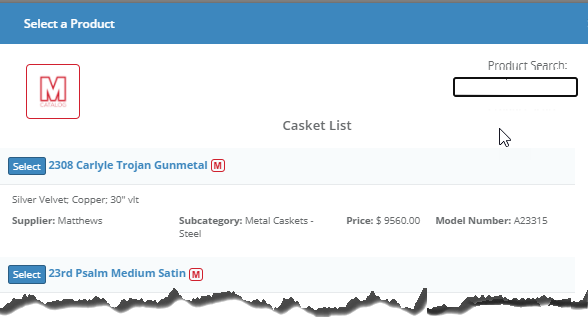
Clicking the Matthews-Aurora icon will load a Matthews-Aurora product selector popup.
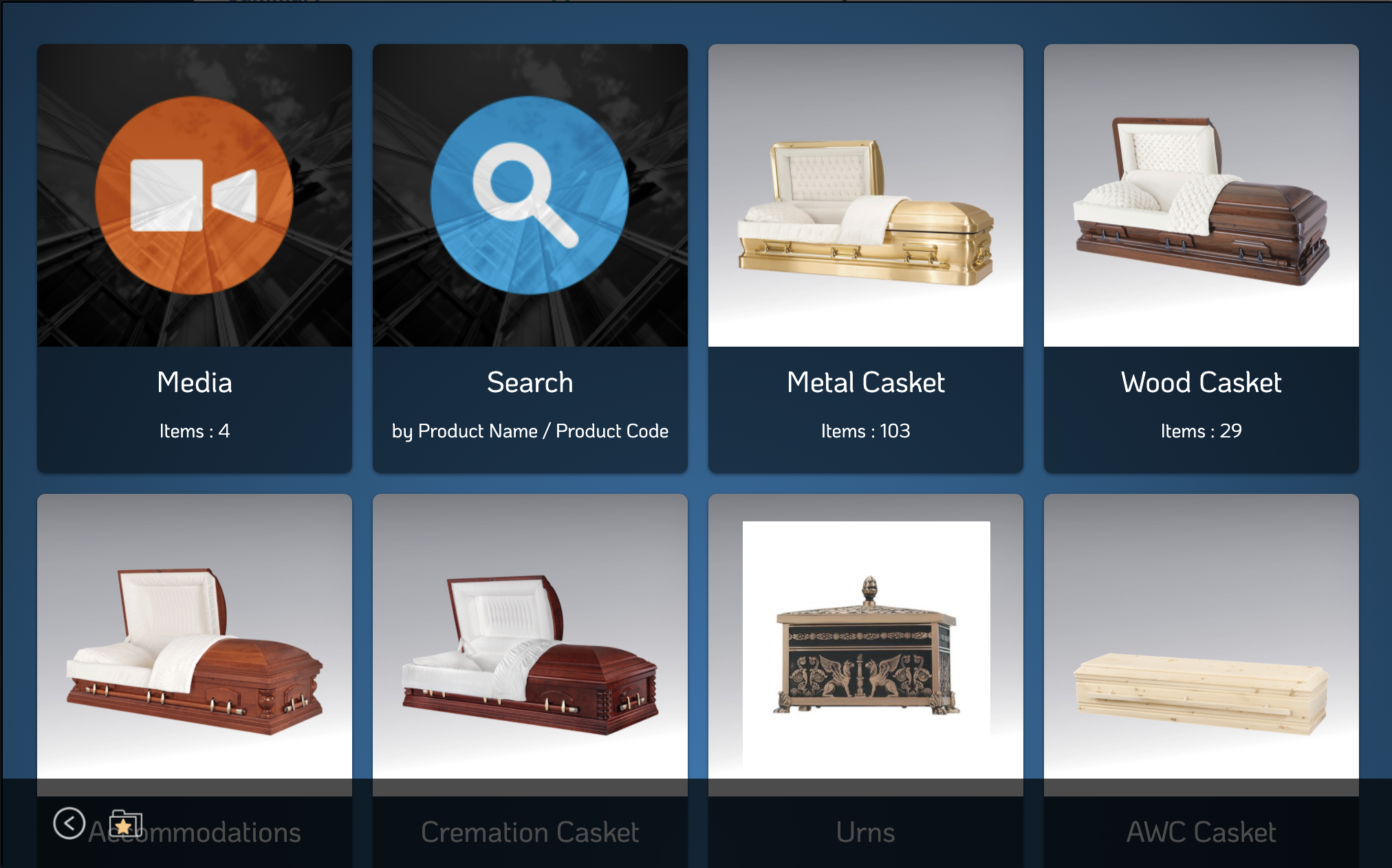
Use this popup to choose a product. Once the product is chosen, you must either create a new product in Halcyon for this Matthews-Aurora product to sync with, or choose an existing Halcyon product for this Matthews-Aurora product to sync with. Then, the product will appear on contract. Once a Matthews-Aurora product has been synced with a Halcyon product, you will not need to repeat this step for the same product, even for other contracts. In Halcyon's Product Selection popup, products that are already synced with Matthews will appear with a small red M logo.

You can select these directly, without going through the Matthews-Aurora product selection popup.
Product Ordering
You can also choose to send product orders directly to Matthews-Aurora. This will require a small amount of configuration additional configuration. A place to select a User will now appear on your configuration page.
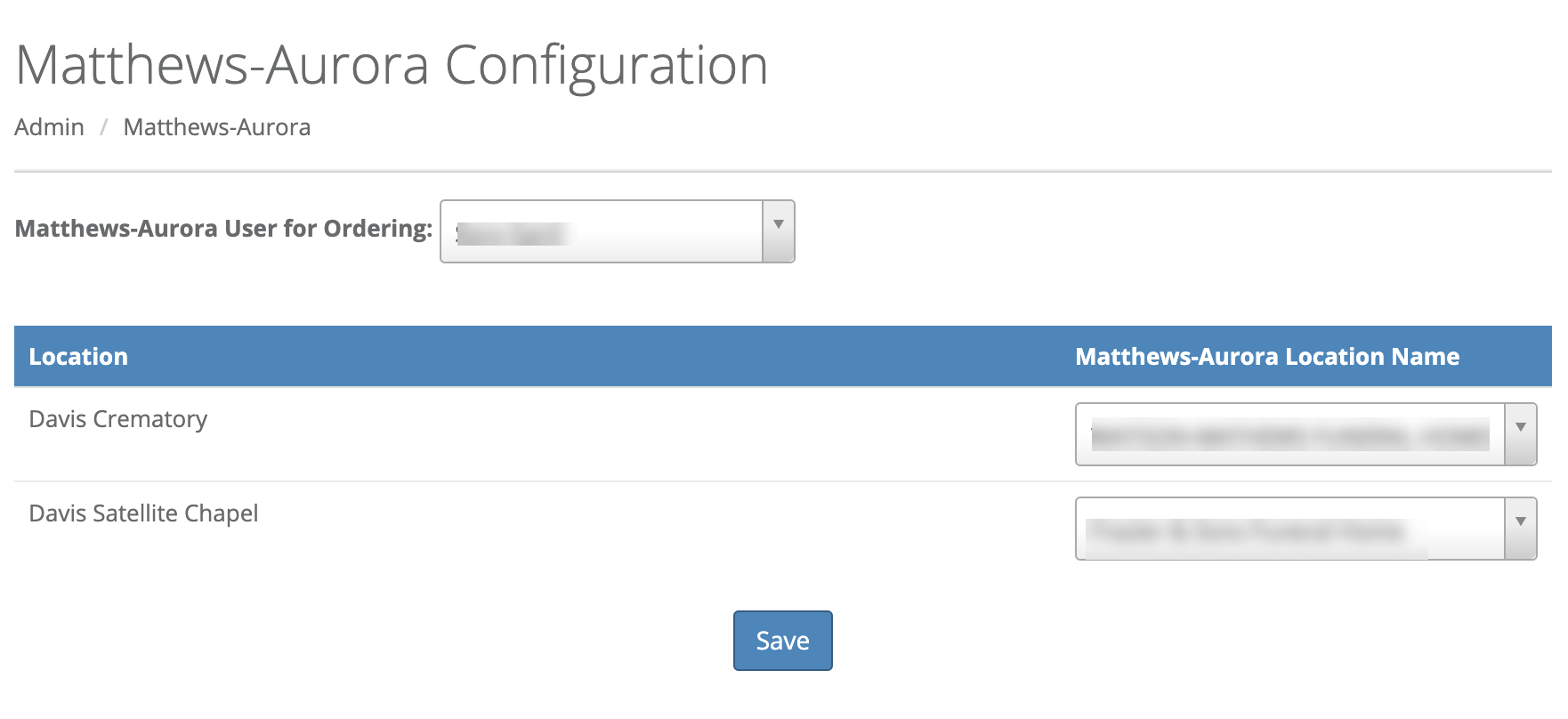
Select a Matthews-Aurora user for the integration. This will determine where confirmation emails and other messages will be sent. After you've selected these, hit save.
Once configuration is complete, you can order Matthews-Aurora products from the Client Purchases screen. Matthews-Aurora products that have not yet been ordered will appear with red icons next to them.

Each time the Save button is clicked, you will be given the option to order any remaining unordered Matthews-Aurora products in this client contract. To order, click the checkmark next to any products you wish to order, fill out the remaining fields, and click Submit Order.
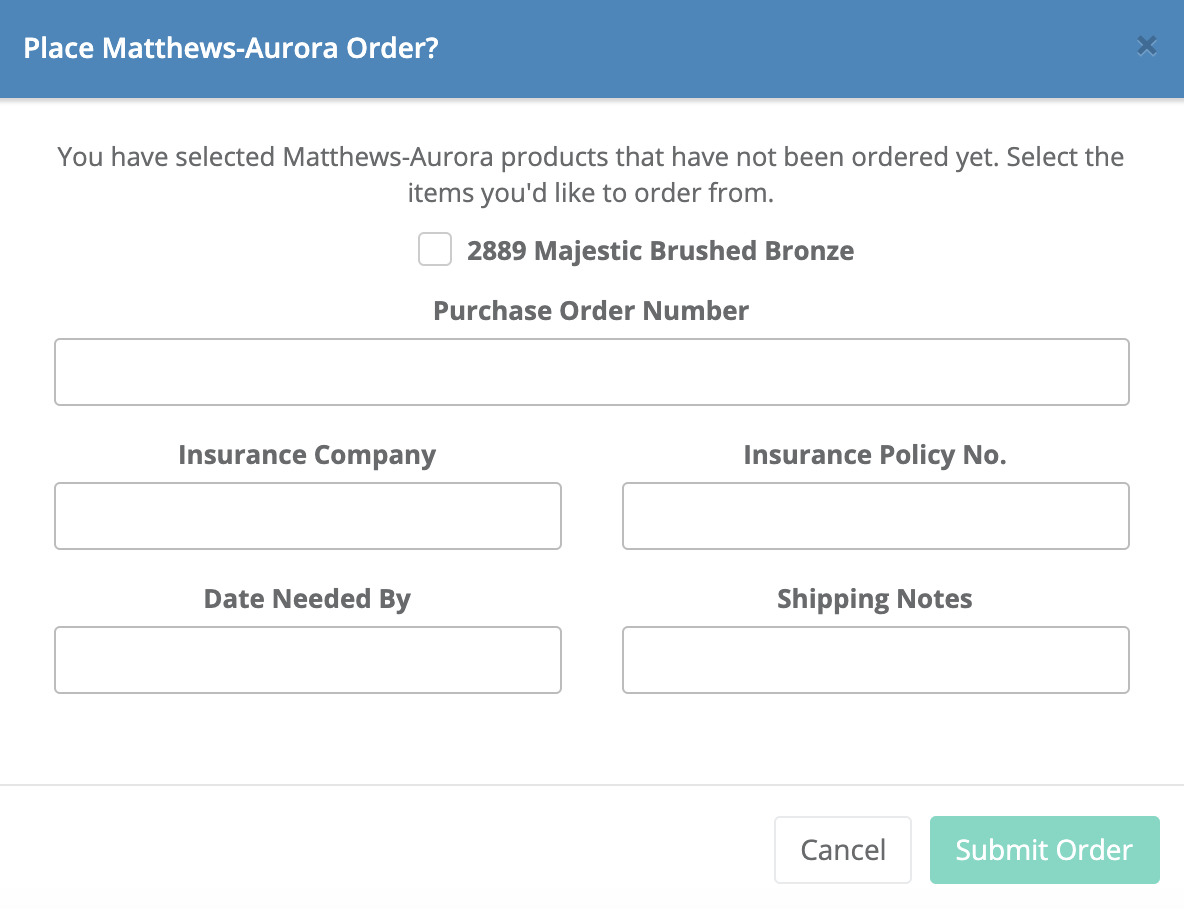
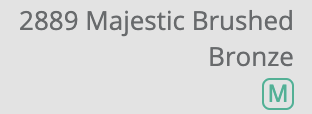
After the order is placed, a confirmation email will be sent to the address for the Matthews-Aurora User associated with this Halcyon location. At this point, the Matthews-Aurora logo next to the product in the contract will appear green instead of red.
Comments
0 comments
Please sign in to leave a comment.